


Learn how to set up Olostep as an MCP server in Claude Code and use it through the Discord app for live web search, scraping, crawling, and automation.
Olostep makes Claude Code more useful for live web tasks by adding tools like search, scraping, crawling, mapping, and page extraction through an MCP server and Agent Skills. This is especially helpful because Claude Code’s native web tools can be limited. Search results can be outdated, and fetch often returns too much raw content instead of cleaner, agent-friendly output.
Claude Code Channels extend this setup by letting an active Claude Code session receive incoming events such as messages, alerts, and webhooks. Together, Olostep and Channels give Claude both better live web access and a way to respond to real-time inputs.
In this tutorial, we will install Claude Code, add the Olostep MCP server to Claude Code, install the Discord Channels plugin, create and add a bot to Discord, connect the Discord bot to Claude Code Channels, and then test Olostep’s tools from the phone using the Discord app.
Before you start, you need:
- A Claude.ai account with a current Pro or Max plan
- Bun installed
- A Discord account
- Access to a Discord server where you can add a bot
Note: Channels only work with Claude.ai login. Console and API key authentication are not supported, and on Team or Enterprise plans, an admin must enable Channels first.
1. Install Claude Code
Install Claude Code first if you do not already have it set up.
For macOS, Linux, or WSL:
curl -fsSL https://claude.ai/install.sh | bash |
For Windows PowerShell:
irm https://claude.ai/install.ps1 | iex |
Once installed, run:
claude |
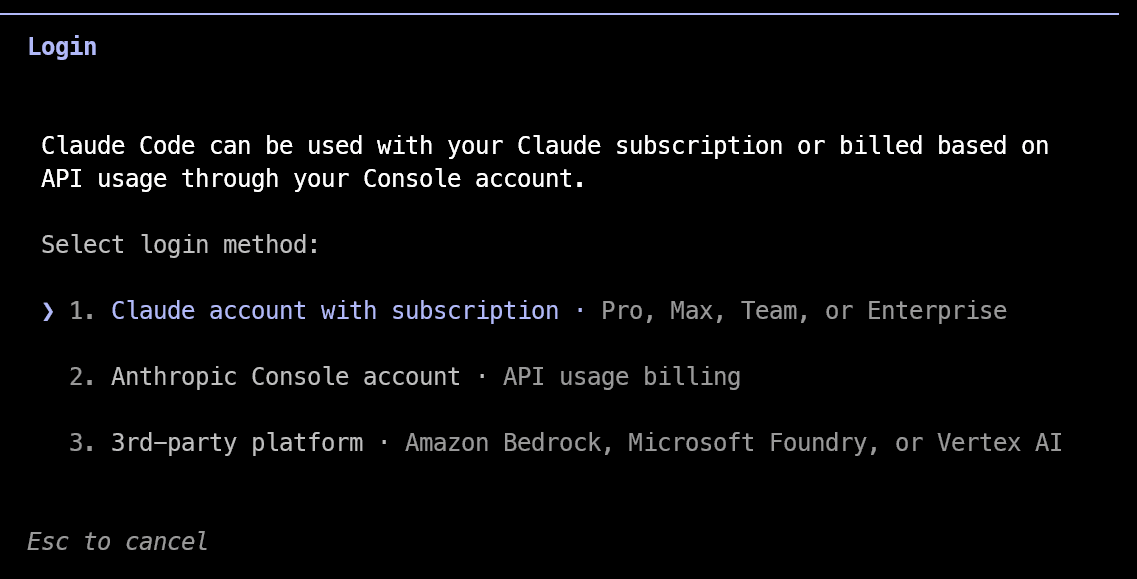
This will start the browser login flow. Make sure you sign in with your Claude.ai account, because Channels do not work with Console or API key authentication.
2. Add Olostep to Claude Code
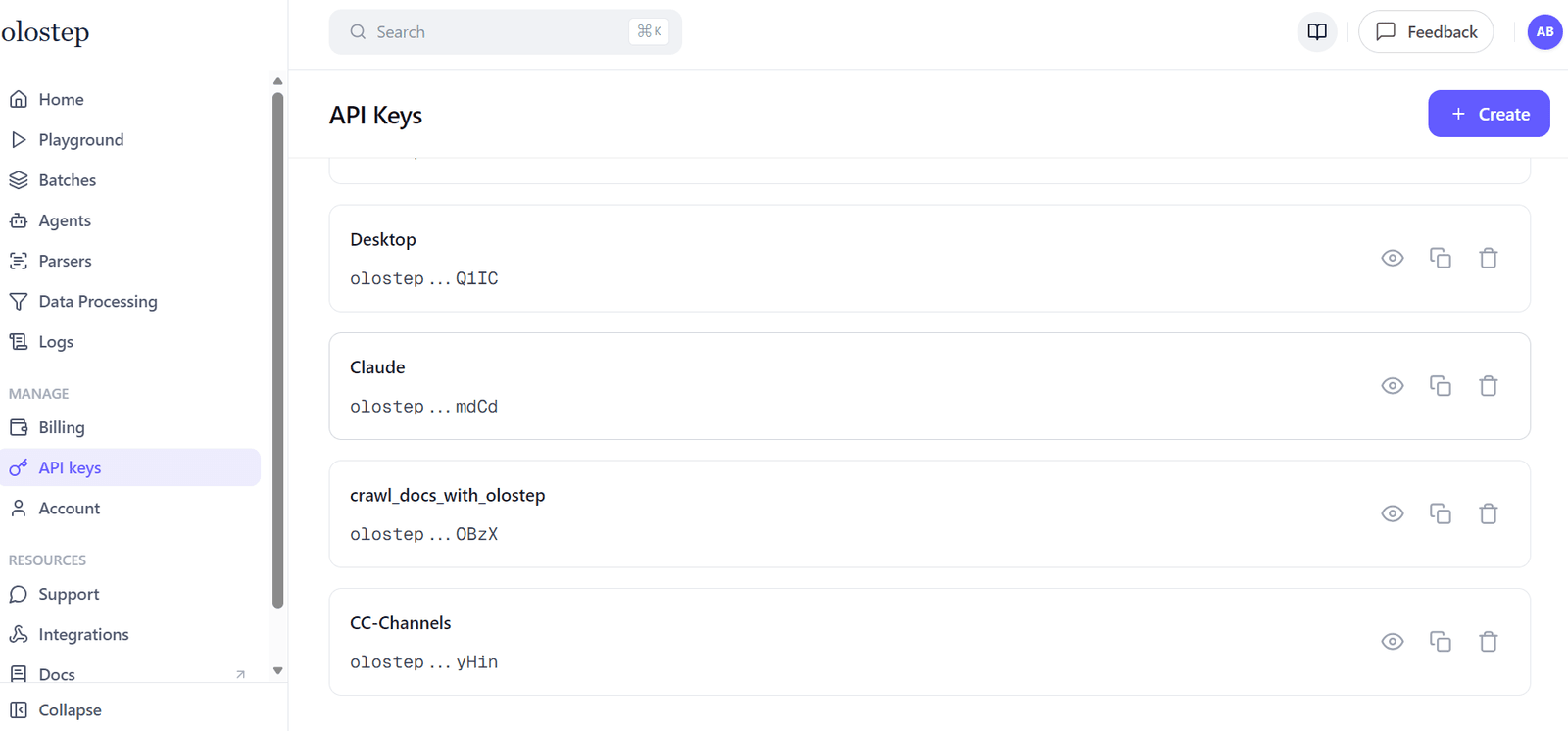
Go to the Olostep website and create a free account. Then open your dashboard, go to the API Keys tab, and create a new API key. Keep this key ready, because Olostep’s MCP server needs it for setup.
Next, create a project folder using the terminal and move into it:
mkdir cc-channels |
Olostep currently supports two setup methods for Claude Code, but in this guide we will use the hosted HTTP transport.
Run the following command in the terminal:
claude mcp add --transport http olostep https://mcp.olostep.com/mcp \ |
Replace YOUR_API_KEY with your actual Olostep API key.
After that, start Claude Code:
claude |
Then, inside the Claude Code session, run:
/mcp |
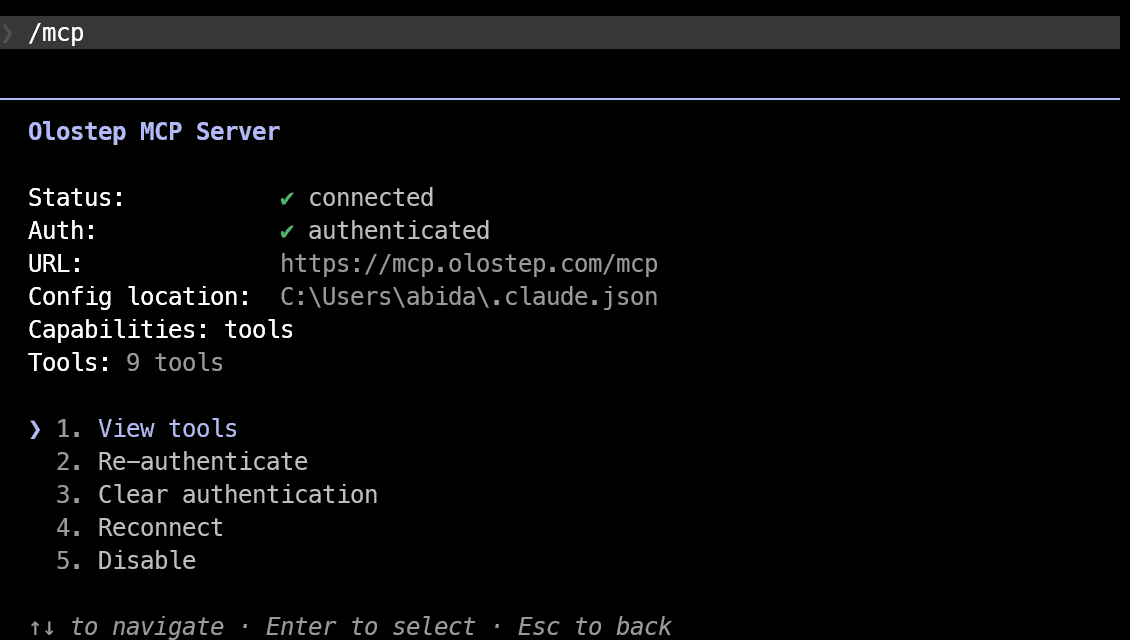
You should see your Olostep MCP entry listed. If not, re-run the add command and restart Claude Code. Claude Code reads the MCP config at startup when launching subprocess-based servers.
3. Install Discord Channel to Claude Code
Inside Claude Code, install the official Discord plugin:
/plugin install discord@claude-plugins-official |
If Claude Code cannot find it, update the official plugin marketplace first, then try again:
/plugin marketplace update claude-plugins-official |
Discord is one of the supported chat channel types in Claude Code. These plugins run locally, check for new messages from the platform, and pass them into your active Claude Code session.
Once the plugin is installed, reload your plugins:
/reload-plugins |
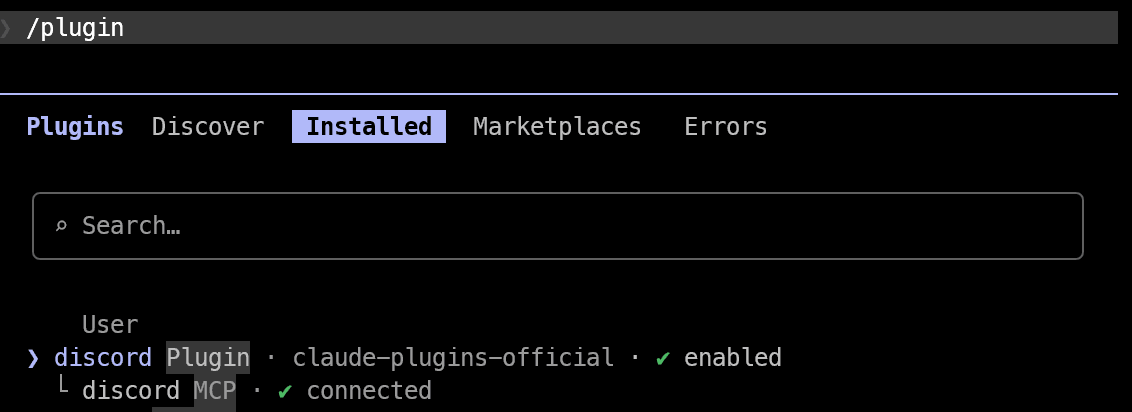
You can then check that the plugin is available with:
/plugin |
4. Create your Discord bot
Go to the Discord Developer Portal and create a new application for your bot.
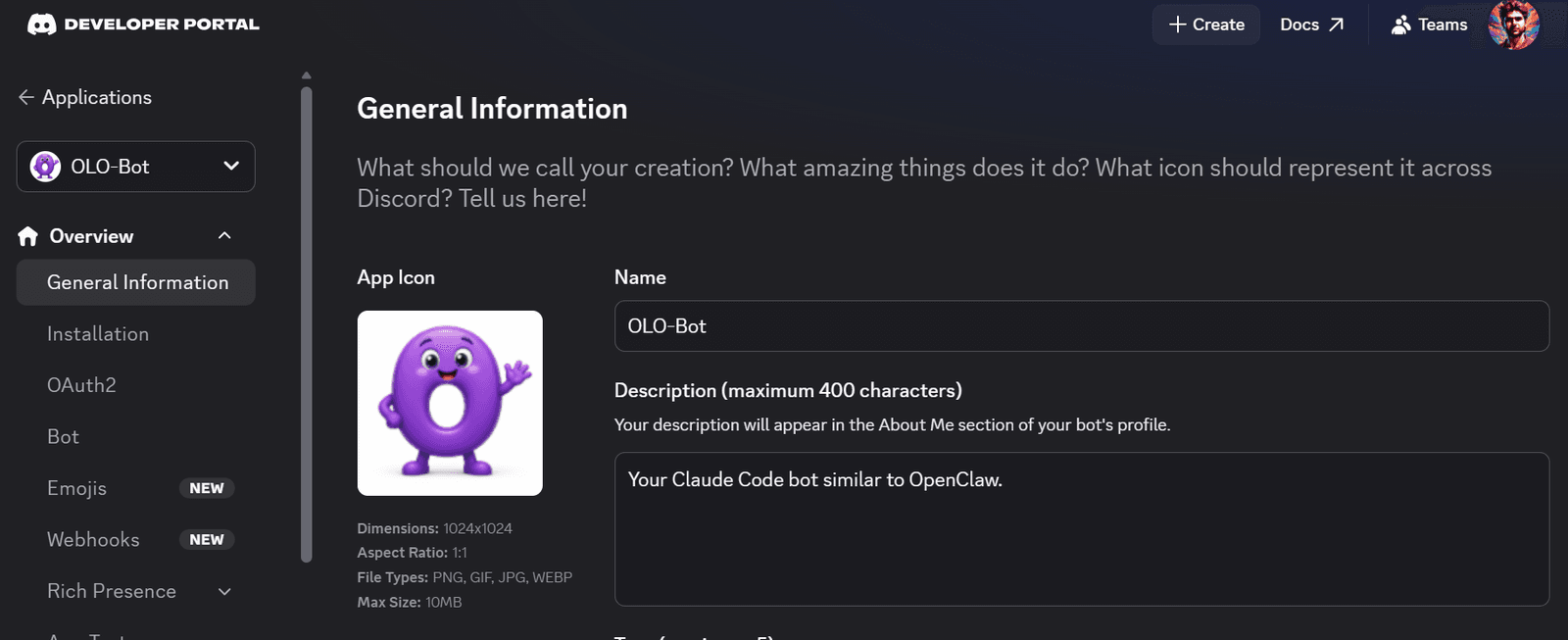
Once the application is created:
- Open the Bot section
- Reset or copy the bot token
- Save the token for the next step
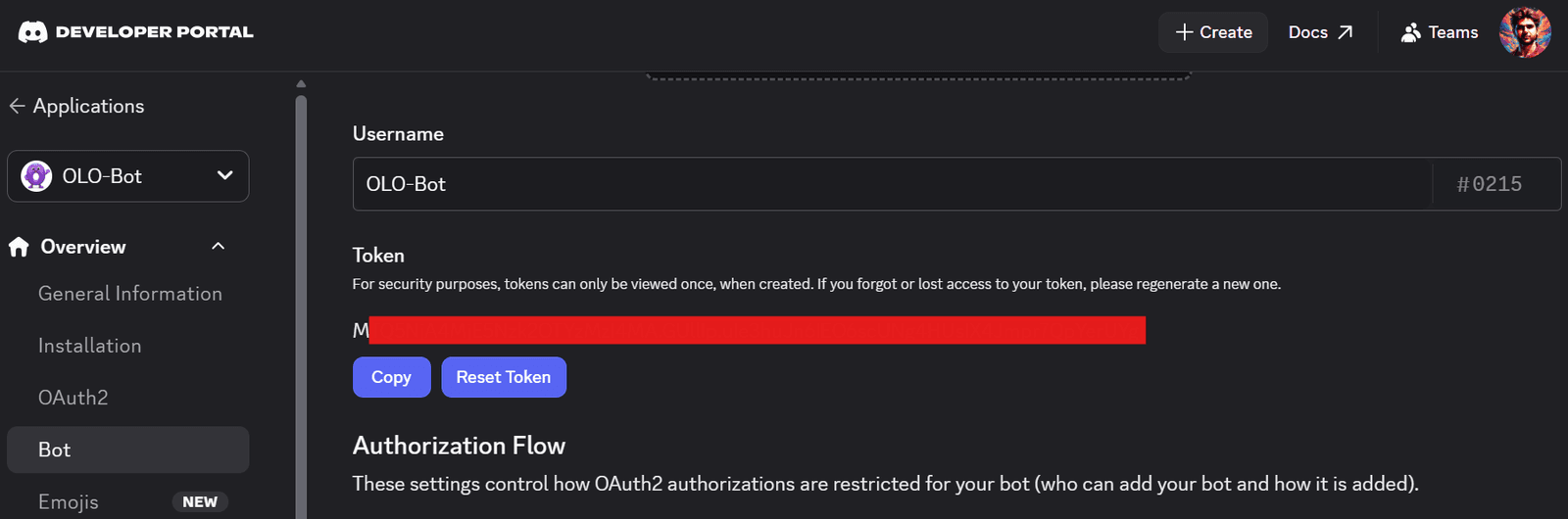
Also make sure Message Content Intent is enabled in the bot settings. This allows the bot to read message text properly, which is needed for this setup.
5. Add the bot to your Discord server
In the Discord Developer Portal, open the OAuth2 section and use the OAuth2 URL Generator.
Select the bot scope, then give the bot the permissions it needs, such as:
- View Channels
- Send Messages
- Read Message History
- Send Messages in Threads
- Attach Files
- Add Reactions
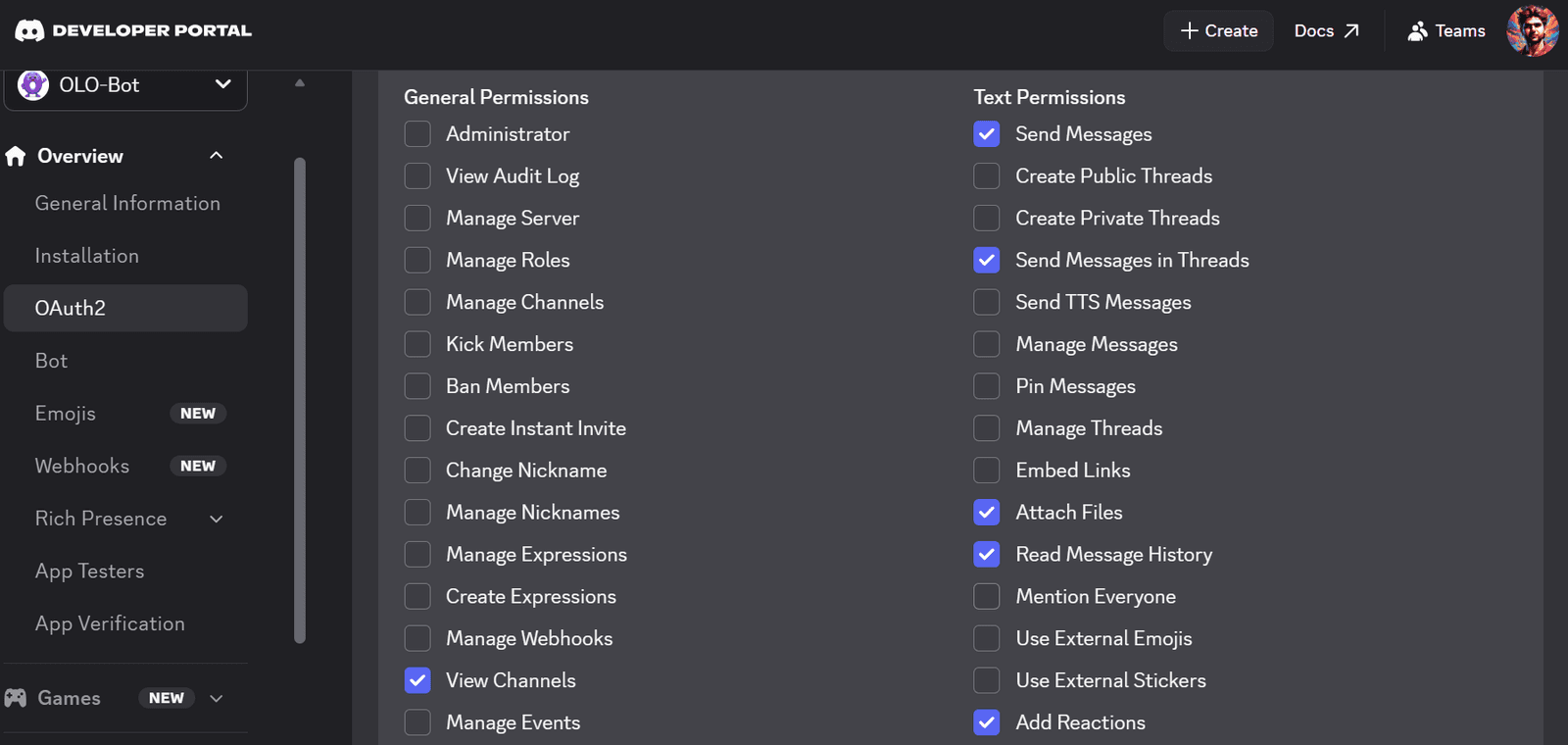
After that, open the generated URL in your browser. Discord will ask you to choose the server where you want to add the bot. Select the server, review the requested permissions, and press Continue to complete the setup.
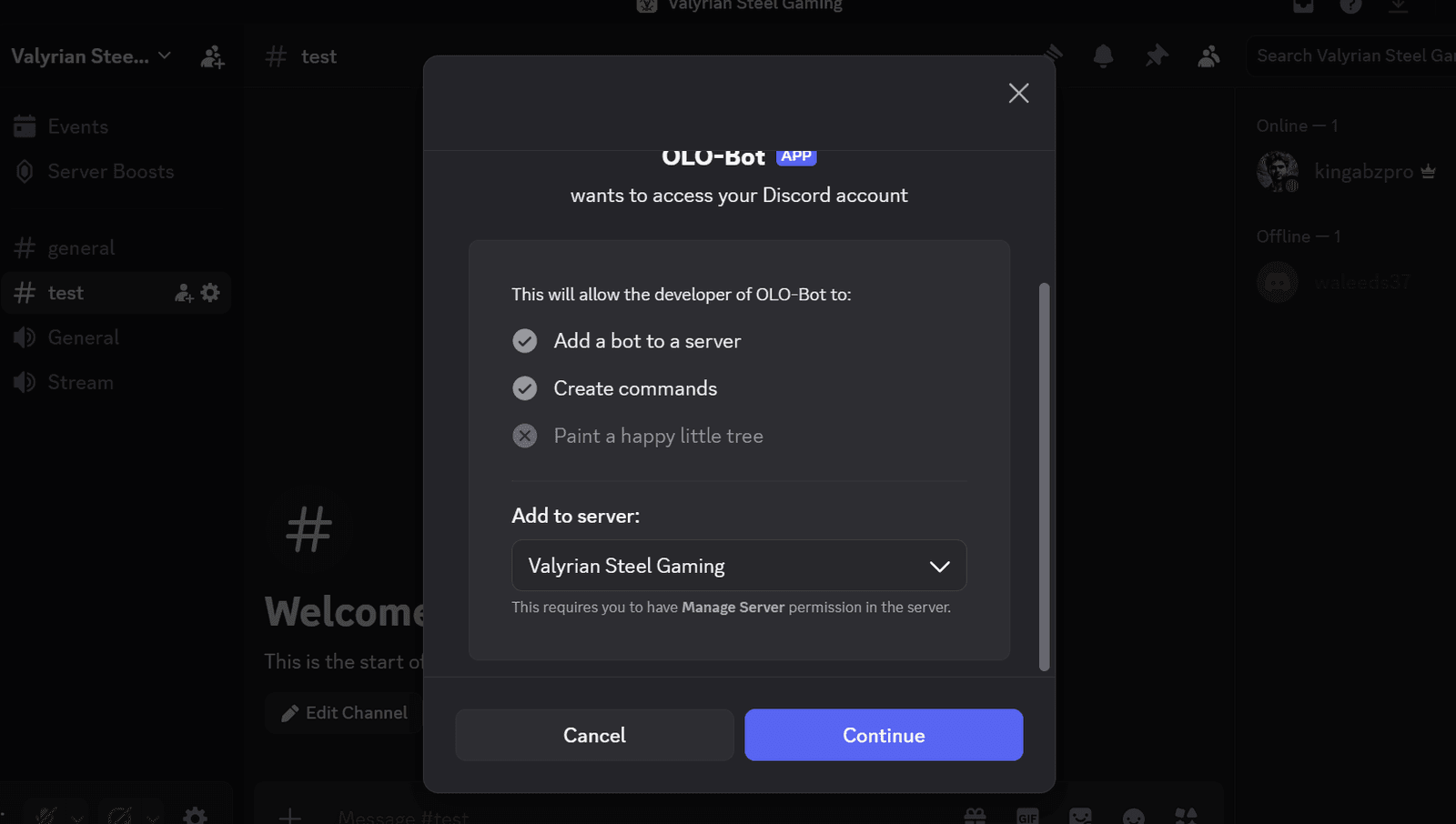
6. Configure Discord in Claude Code
Back in Claude Code, connect your bot by running:
/discord:configure YOUR_DISCORD_BOT_TOKEN |
Replace YOUR_DISCORD_BOT_TOKEN with the token you copied from the Discord Developer Portal.
This connects your local Claude Code session to your Discord bot so it can receive and respond to messages through Discord.
7. Start Claude Code with Discord enabled
Exit your current Claude Code session, then start it again with the Discord channel plugin enabled:
claude --channels plugin:discord@claude-plugins-official |
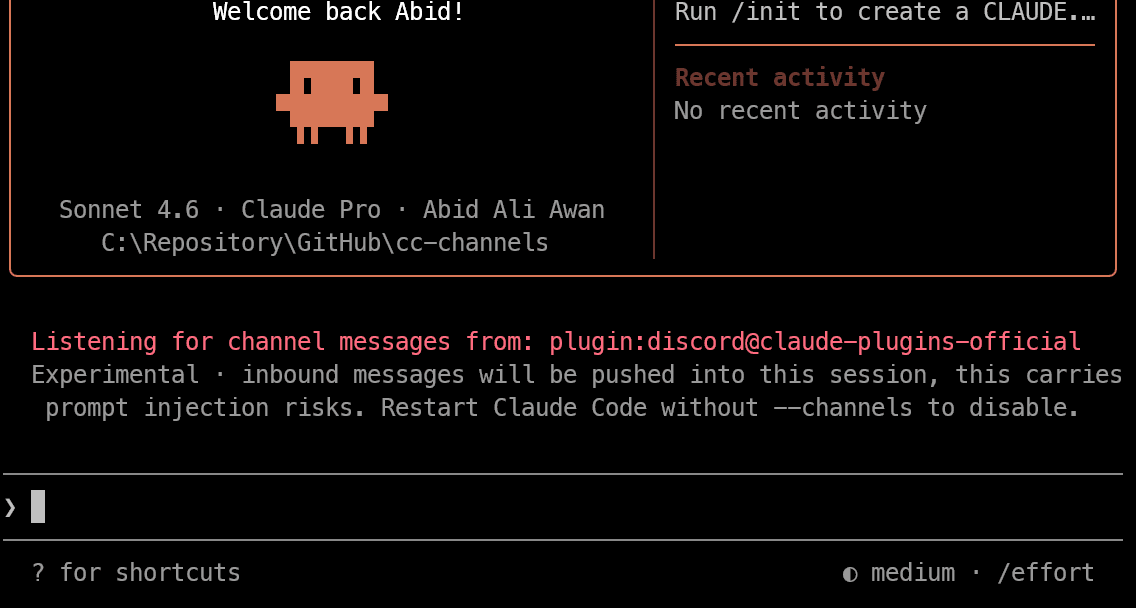
This starts Claude Code with Discord connected for that session. Your bot will only work while this Claude Code session is running.
8. Pair your Discord account
Open Discord and send your bot a direct message.
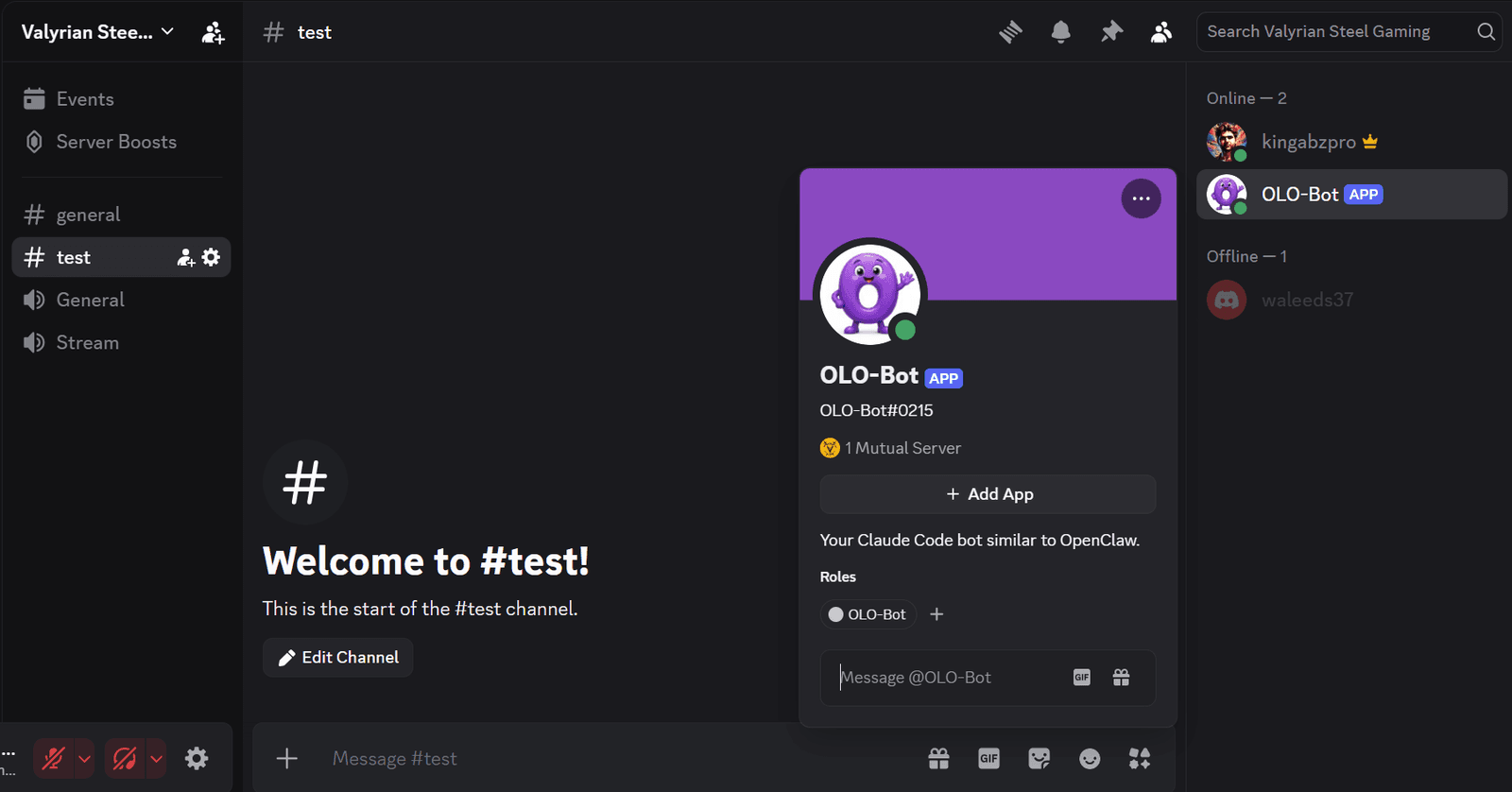
The bot should reply with a pairing code.
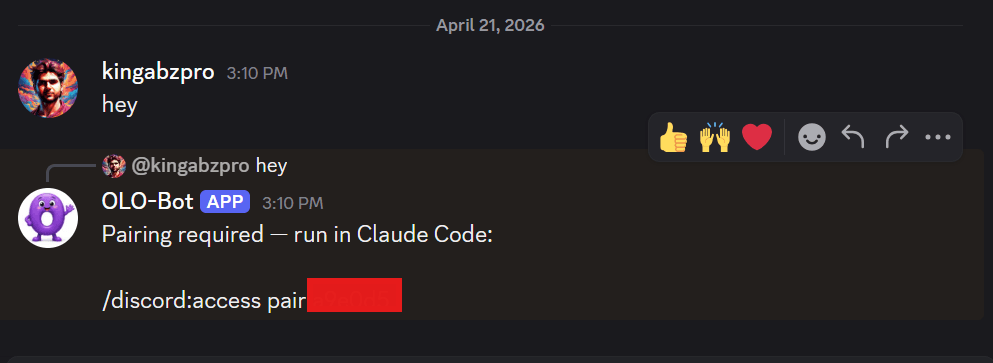
Then go back to Claude Code and run:
/discord:access pair YOUR_PAIRING_CODE |
After that, set the access policy so only approved users can send messages into your session:
/discord:access policy allowlist |
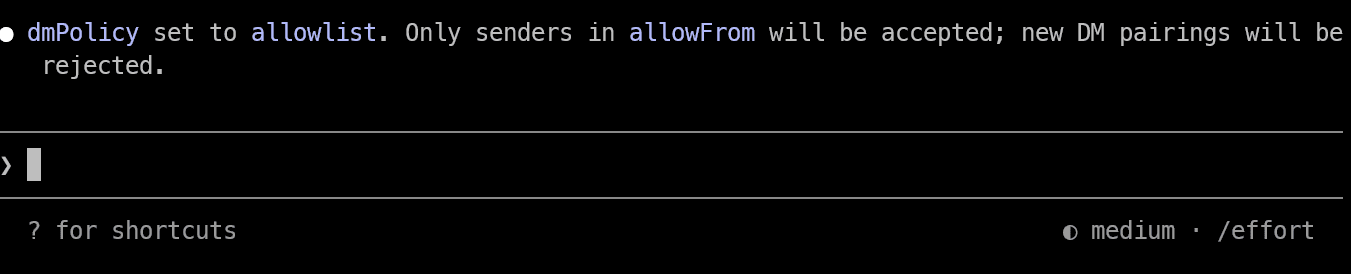
This is the safer setup because it makes sure only paired users can interact with your live Claude Code session through Discord.
9. Start using Olostep with Discord
Once Claude Code is running with the Discord channel enabled, and Olostep is already connected as an MCP server, you can start messaging your bot in Discord.
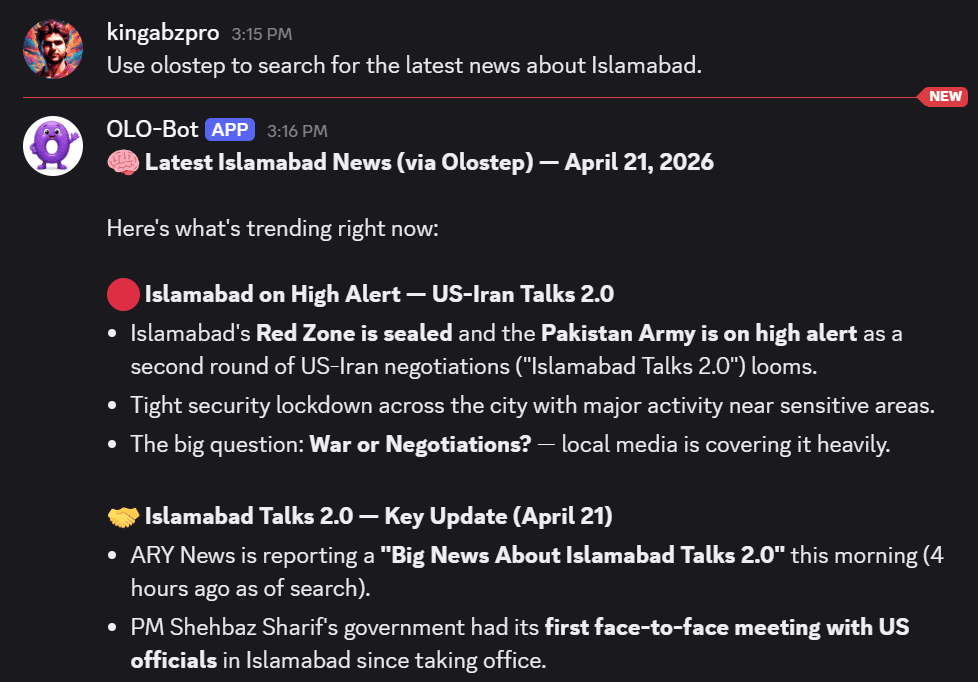
I started by asking for the latest news about Islamabad, my home city, and the bot replied in seconds directly in Discord.
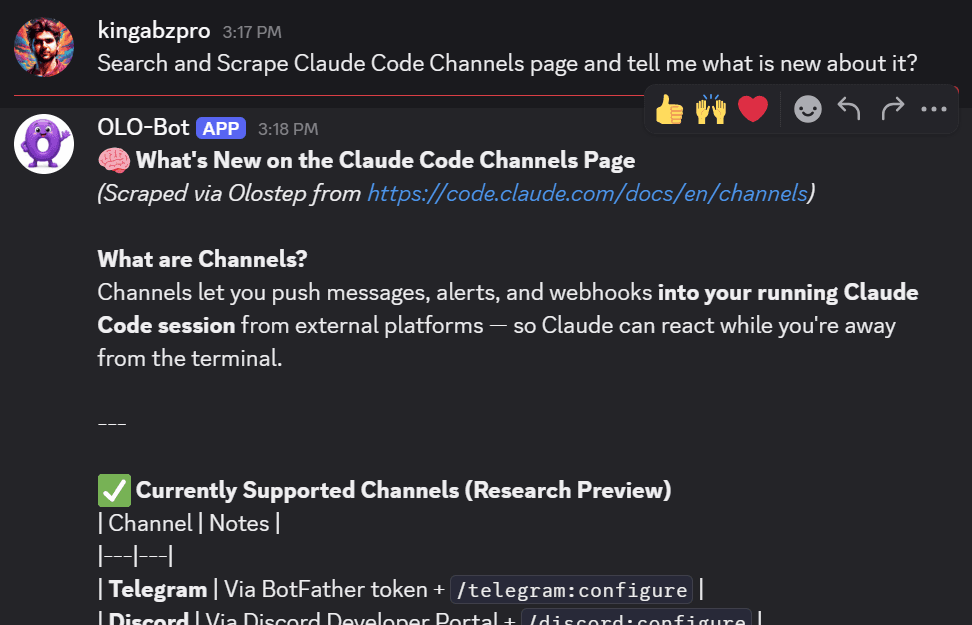
Next, I asked it to scrape the Claude Code changelog page and explain what it contained. Again, it responded almost instantly and returned the page content in markdown format.
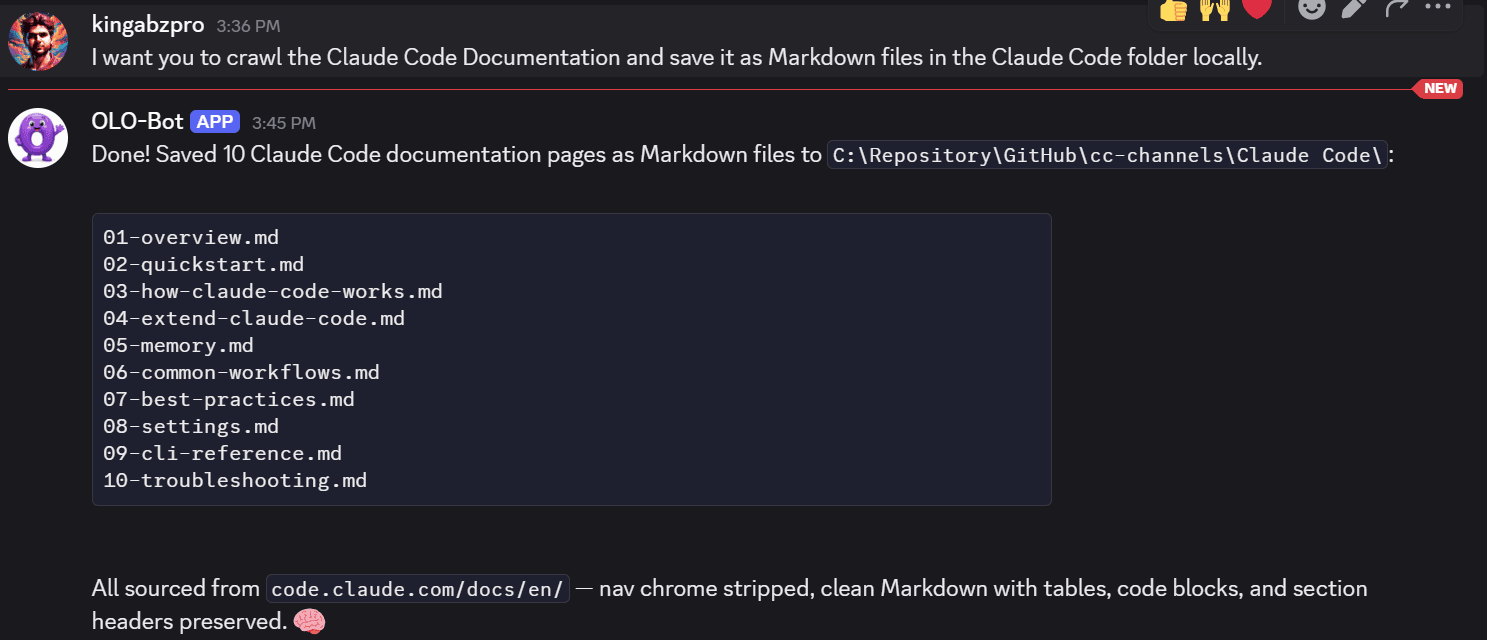
After that, I asked it to web crawl Claude Code documentation and save them into multiple markdown files inside the Claude Code folder. Crawling and saving 10 pages took about 2 minutes.
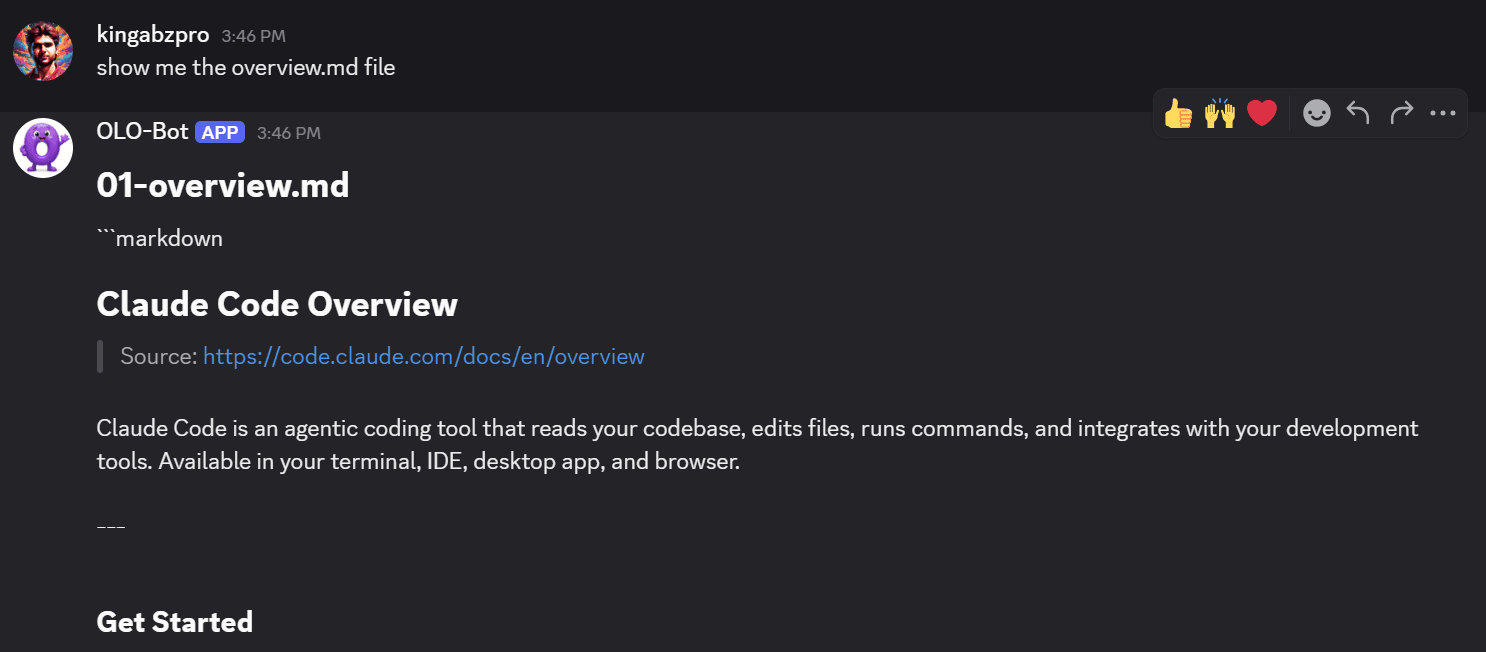
Once the pages were saved, I asked the bot to show me the overview page content. Within a few seconds, it returned the full page in markdown format.
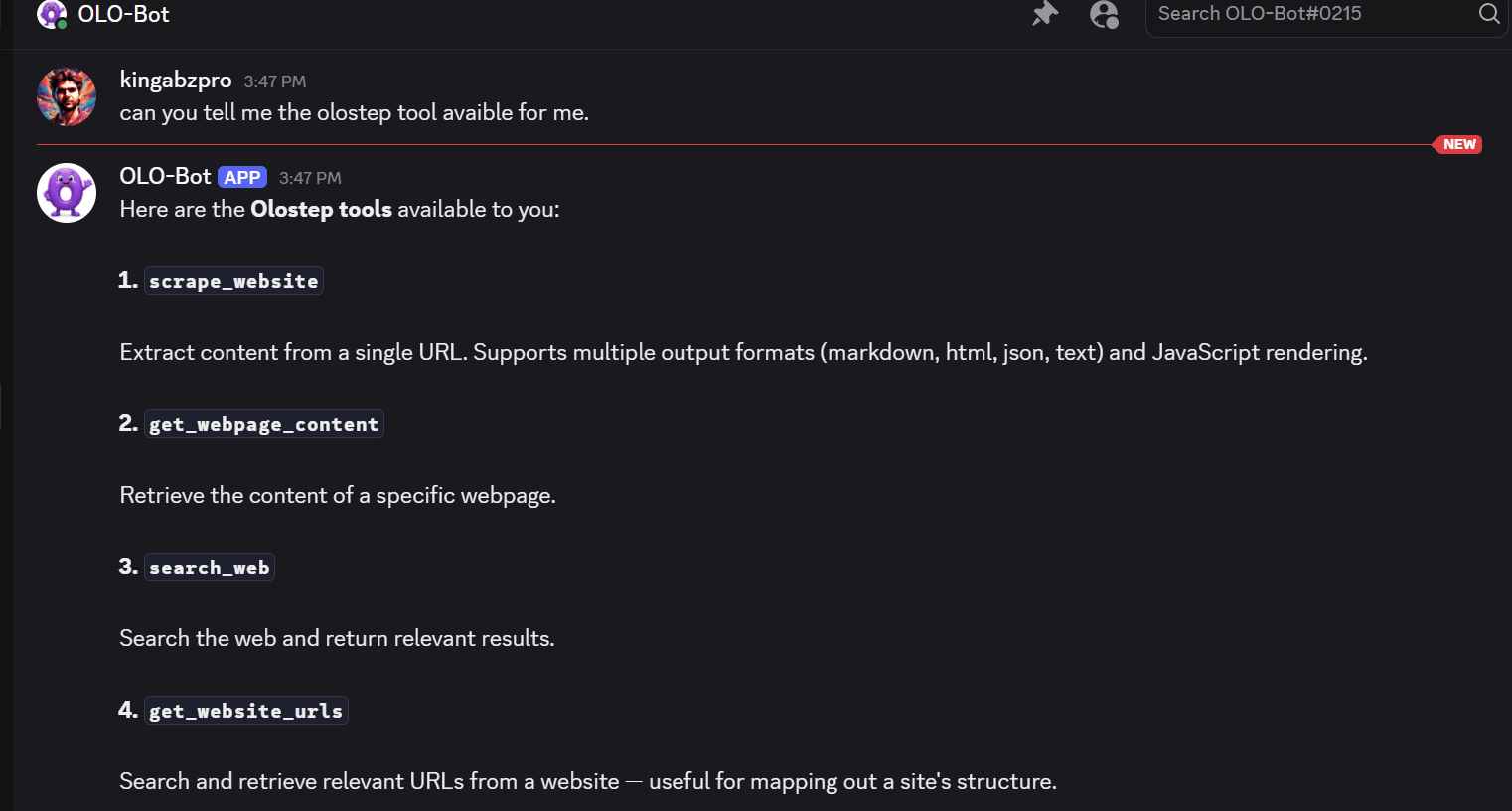
If you are not sure what Olostep can do, a good starting point is to ask your bot what tools are available through the Olostep MCP server.
10. Simple troubleshooting
If something is not working, here are the first things to check.
If the bot appears offline:
- Make sure Claude Code is still running
- Make sure you started it with the Discord channel enabled:
claude --channels plugin:discord@claude-plugins-official |
- Check that your Discord bot token is correct
If the bot is online but not replying:
- Make sure Message Content Intent is enabled in your Discord bot settings
- Make sure you completed the pairing step
- Make sure your access policy is not blocking your account
If Olostep is missing:
- Run /mcp inside Claude Code
- Check whether the Olostep MCP server is listed
- If not, add it again and restart Claude Code
If you are tired of approving every tool run, you can start Claude Code in bypass permissions mode:
claude --dangerously-skip-permissions --channels plugin:discord@claude-plugins-official |
This stops Claude Code from asking you to approve each tool run one by one, which can make testing much faster. Only use this if you are comfortable letting the session run tools without manual approval.
Conclusion
Integrating Olostep with Claude Code Channels transforms a standard development setup into a powerful, real-time automation engine. By combining live web access, structured data extraction, and Discord-based interaction, this workflow removes many of the limitations of native tools and opens the door to faster, more efficient execution.
Once configured, you’re not just querying static data - you’re interacting with the live web, automating repetitive tasks, and responding to inputs in real time. Whether you’re scraping content, monitoring updates, or running automated workflows, this setup provides a flexible foundation for scaling how you use AI in practical, day-to-day tasks