


Automating investment research does not mean replacing human judgement. It means removing the repetitive work that slows research down: checking company updates, scanning investor relations pages, reviewing earnings-related news, collecting links, summarising public information and sending it somewhere useful.
In this guide, you’ll build an automated investment research workflow using Olostep, n8n, OpenAI, Gmail and Docker. The workflow runs on a schedule, researches a list of stock tickers, collects relevant public sources, turns the findings into a structured report and sends the final summary as an HTML email.
The workflow is designed to act as a research assistant. It can help you monitor companies more consistently, identify updates worth reviewing and organise public information into a cleaner daily or weekly report. It does not provide financial advice, make investment recommendations, predict stock prices or replace your own independent analysis.
What You’ll Build
By the end of this guide, you will have a working n8n workflow that can automatically research a stock watchlist and send the findings to your inbox.
The workflow will:
- Run automatically on a weekday schedule
- Use a stock ticker watchlist as the starting point
- Split each ticker into a separate research query
- Search public web sources using Olostep
- Combine the research results into one structured input
- Use OpenAI to create a full investment research report
- Convert the report into a styled HTML email
- Send the final report through Gmail
The final output is a repeatable research email that includes key source links, recent company updates, opportunity signals, risk signals, financial or earnings-related notes, follow-up research questions and a clear disclaimer.
This gives you a faster way to review multiple companies without manually rebuilding the same research process every day.
Who This Workflow Is For
This workflow is useful for anyone who regularly monitors public company information and wants a more organised way to collect and summarise research.
It is especially useful for:
- Individual investors tracking a personal watchlist
- Analysts reviewing multiple public companies
- Founders or operators monitoring competitors and listed companies
- Finance teams that want recurring market or company research summaries
- Researchers who need a repeatable way to collect public source material
- Automation builders looking for a practical n8n, Olostep and OpenAI use case
The workflow is best suited to people who want a first-pass research summary, not a final decision-making system. It helps organise public information, but any important finding should still be checked against the original source before it is used.
This workflow is not designed for automated trading, stock picking, financial advice, price prediction or portfolio management.
Before You Start
Before building the workflow, make sure you are comfortable copying commands into a terminal, editing configuration files and creating API credentials inside third-party platforms.
You do not need to be an advanced developer, but you should have a basic understanding of:
- Running software locally with Docker
- Creating and editing n8n workflows
- Adding API credentials to automation tools
- Connecting Gmail through Google OAuth
- Testing workflow outputs before publishing automation
You will also need access to Olostep, OpenAI and a Gmail account. Gmail requires a Google Cloud project and OAuth credentials before n8n can send emails securely.
The workflow in this guide is built around US stock market timing, using a weekday schedule at market open. You can change the schedule, timezone, ticker list, email recipient and report format to suit your own use case.
Most importantly, treat the output as a research starting point. The workflow can summarise public information quickly, but it may miss sources, include outdated results or summarise information imperfectly. Always review primary sources before making decisions.
Tools You’ll Need
Before you start building the workflow, make sure you have access to the tools below.
Tool | Purpose |
Docker Desktop | Runs n8n locally using Docker Compose. |
n8n | Builds and manages the automation workflow. |
Olostep | Searches the web and returns public investment-related sources. |
OpenAI | Turns the collected sources into a structured research report. |
Gmail | Sends the final report as an HTML email. |
Google Cloud | Creates the OAuth credentials needed to connect Gmail securely. |
You will also need API keys or credentials for:
- Olostep
- OpenAI
- Gmail OAuth through Google Cloud
Docker Desktop should be installed and running before you begin. Docker Compose is included with Docker Desktop, so once Docker is open, you can run the setup commands from your terminal.
If you already have n8n running somewhere else, such as n8n Cloud or an existing self-hosted instance, you can still follow the workflow logic in this guide. The Docker setup is included for readers who want a clean local installation.
How to Set Up the Workflow Step by Step
Now that you understand what the workflow does, who it is for and which tools are required, it is time to build the automation.
The setup is divided into six main stages. First, you will run n8n locally with Docker. Then you will build the investment research workflow, connect Olostep and OpenAI, configure Gmail credentials, validate the output and publish the workflow so it can run automatically on schedule.
Follow the steps in order if you are building the workflow manually. Each section focuses on one part of the setup, from launching n8n to testing the final HTML email.
By the end of these steps, you should have a working workflow that can collect public investment research sources, generate a structured report and send it to your inbox without needing to rebuild the process each day.
1. Run n8n Locally with Docker
Before we build the workflow, we need to run n8n locally. The easiest way to do this is with Docker Compose. It gives us a clean local n8n setup with persistent storage, which means your workflows and credentials will stay saved even if the container is stopped or restarted.
Start by creating a new project folder:
mkdir olostep-n8n-investment-agent |
Inside this folder, create a new file named:
docker-compose.yml |
Add the following configuration to the file:
name: olostep-n8n-investment-agent |
The N8N_COMMUNITY_PACKAGES_ENABLED=true setting allows you to install community nodes inside n8n, which we will need for the Olostep node. The n8n_data volume keeps your workflow data and credentials stored locally, so you do not lose them when the Docker container restarts.
Now start n8n, by typing following coming in terminal:
docker compose up -d |

Once the container is running, open n8n in your browser:
http://localhost:5678 |
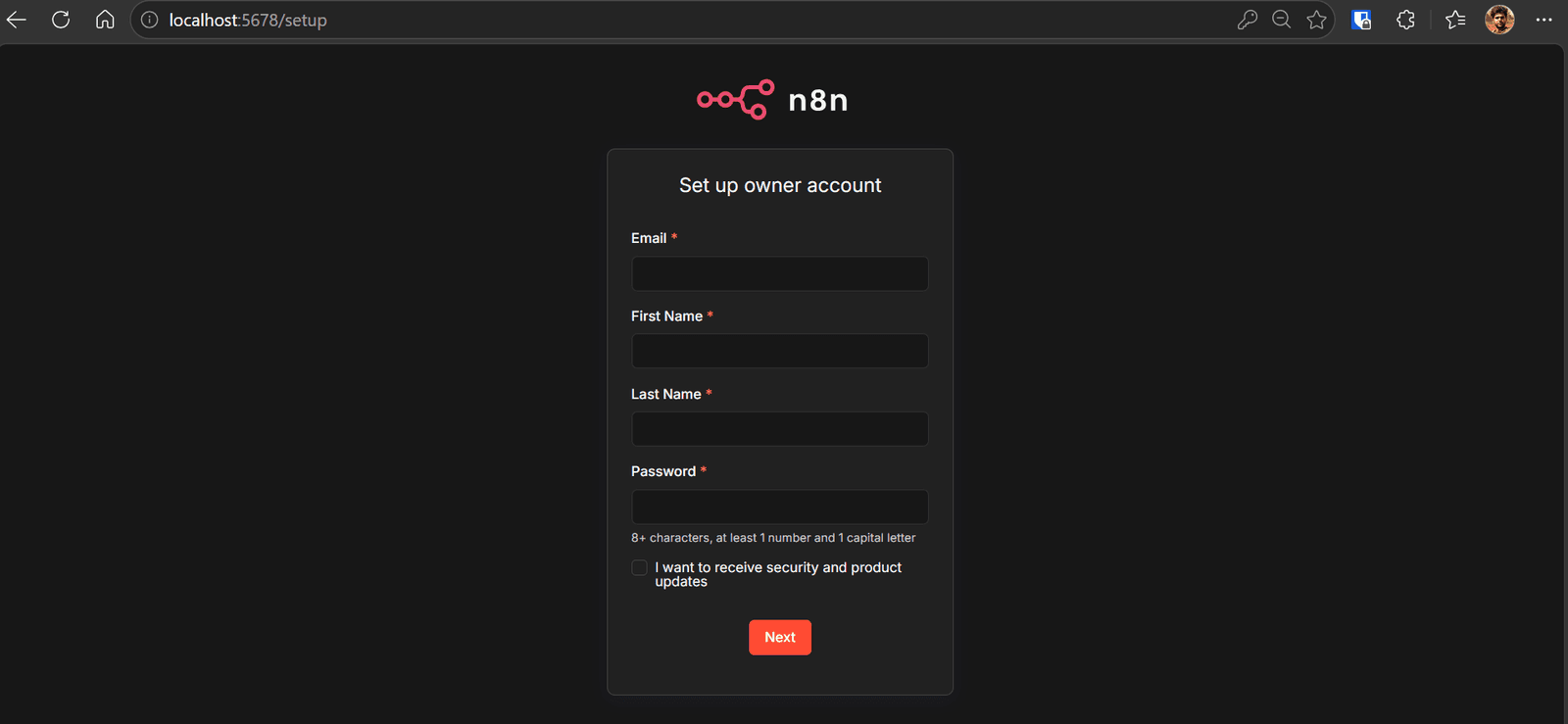
Create your n8n account when prompted. Once you are inside the n8n dashboard, install the Olostep community node from Settings → Community Nodes.
Click Install, then enter the Olostep npm package name:
n8n-nodes-olostep |
Confirm that you understand the risks of installing a community node, then click Install.
2. Build the Investment Research Workflow
Now that n8n is running locally, we can build the workflow. In the updated version, the workflow includes both a scheduled trigger and a manual test trigger. This makes it easier to test the workflow before publishing it for automatic weekday reports. The workflow researches a stock watchlist with Olostep, summarizes the results with OpenAI, converts the report into a styled HTML email, and sends it through Gmail.
Workflow Overview
Now that n8n is running locally, we can build the workflow. This version includes both a scheduled trigger and a manual test trigger, which makes it easier to test the workflow before publishing it for automatic weekday reports.
The workflow researches a stock watchlist with Olostep, summarises the results with OpenAI, converts the report into a styled HTML email and sends it through Gmail.
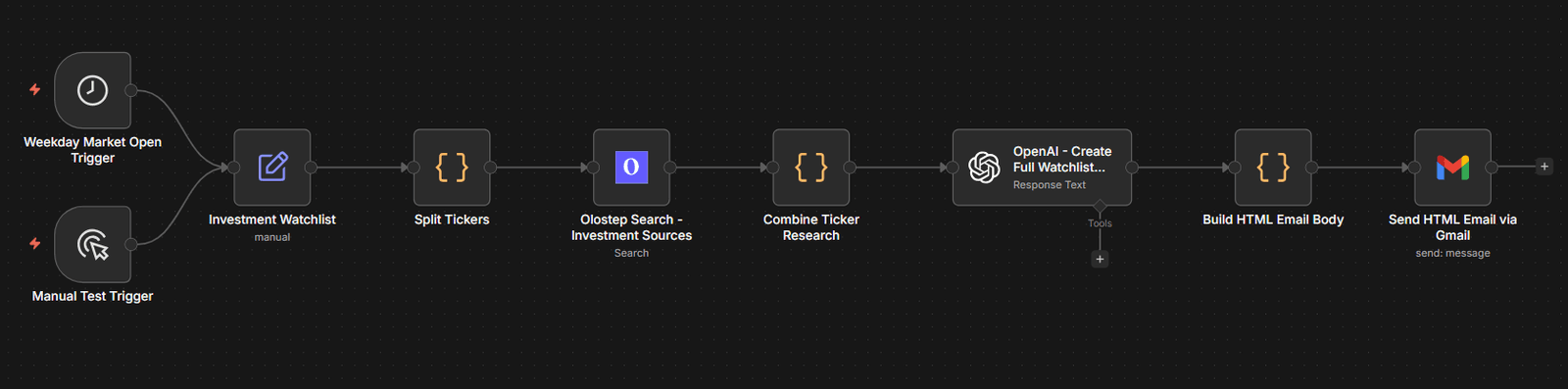
The final workflow structure looks like this:
Weekday Market Open Trigger |
The manual trigger is used while testing the workflow. The weekday market open trigger is used once the workflow is published and ready to run automatically.
Schedule Trigger
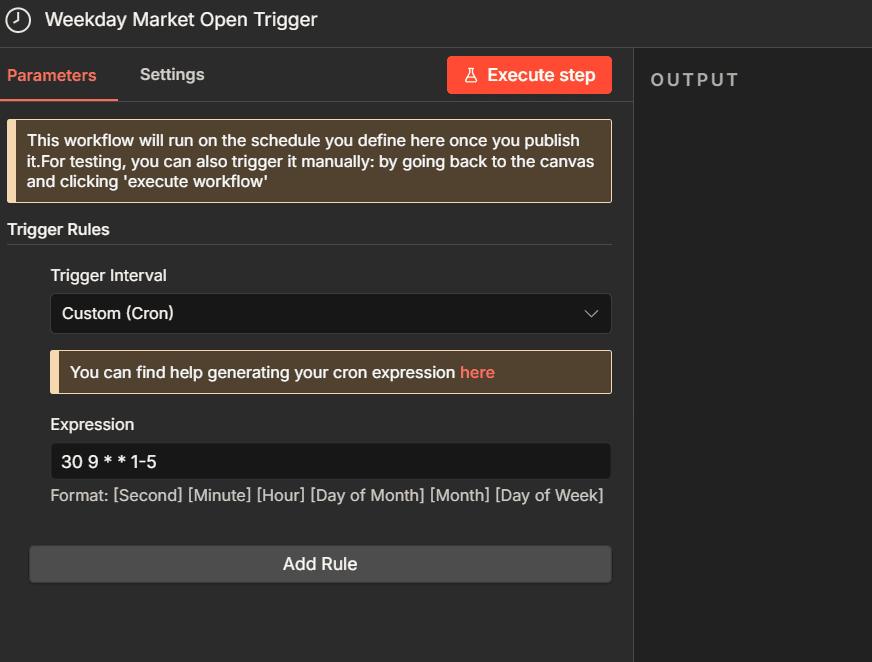
Start by adding a Schedule Trigger node and name it:
Weekday Market Open Trigger |
This trigger runs the workflow automatically every weekday when the US market opens.
Set the trigger to use a cron expression:
30 9 * * 1-5 |
This means the workflow will run at 9:30 AM, Monday to Friday.
Make sure your n8n timezone is set correctly. For US market open, use:
America/New_York |
Investment Watchlist
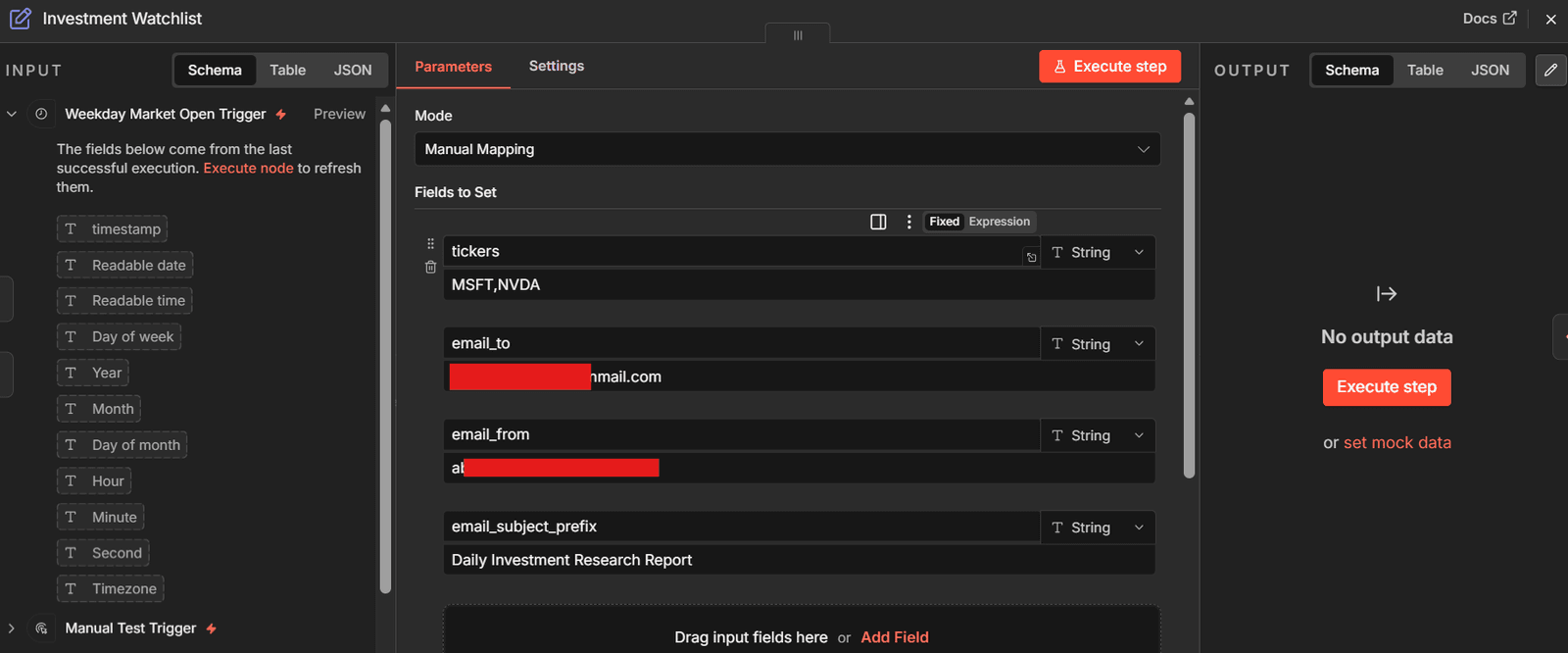
Add a Set node and name it:
Investment Watchlist |
This node stores the main settings for your report, including the tickers, recipient email, sender email, and subject prefix.
Add the following fields:
tickers |
Use example values like this:
tickers: MSFT,NVDA |
You can update the tickers field anytime to change the companies included in the report. For example:
MSFT,NVDA,AAPL,GOOGL |
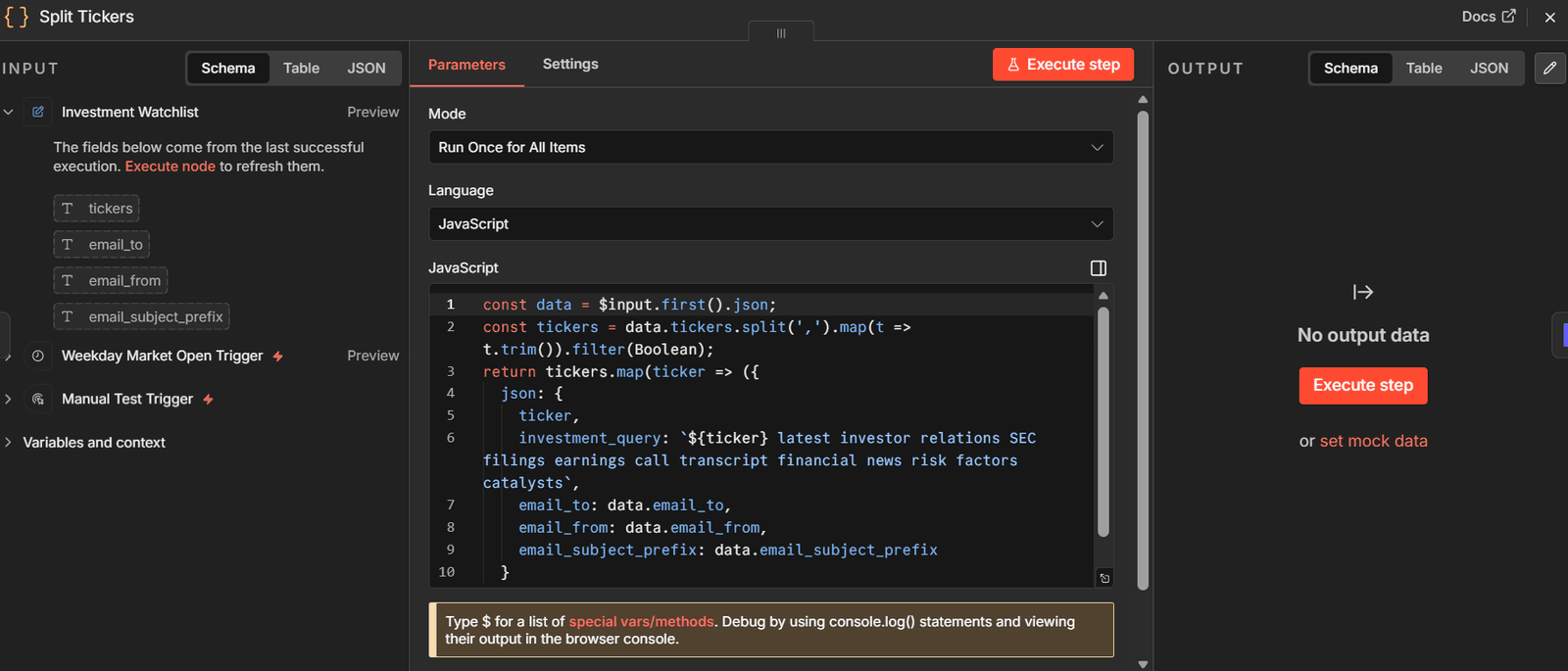
Split Tickers
After the watchlist node, add a Code node and name it:
Split Tickers |
This node turns your comma-separated ticker list into separate workflow items. It also keeps the email settings attached to each item so they can be reused later in the workflow.
Use this code:
const data = $input.first().json; const tickers = data.tickers.split(',').map(t => t.trim()).filter(Boolean); return tickers.map(ticker => ({ json: { ticker, investment_query: `${ticker} latest investor relations SEC filings earnings call transcript financial news risk factors catalysts`, email_to: data.email_to, email_from: data.email_from, email_subject_prefix: data.email_subject_prefix } })); |
This creates one search query per ticker. Each query is designed to look for investor relations pages, SEC filings, earnings call transcripts, financial news, risk factors, and company catalysts.
Olostep Search - Investment Sources
Next, add the Olostep Web Scraper node and name it:
Olostep Search - Investment Sources |
Before you can use the node, you need to connect your Olostep API key.
Go to the Olostep dashboard and open the API keys section. From there, generate a new API key and copy it.
Then go back to n8n, search the Olostep, add the Search node, and create a new Olostep credential. Paste your API key into the credential field and save it.
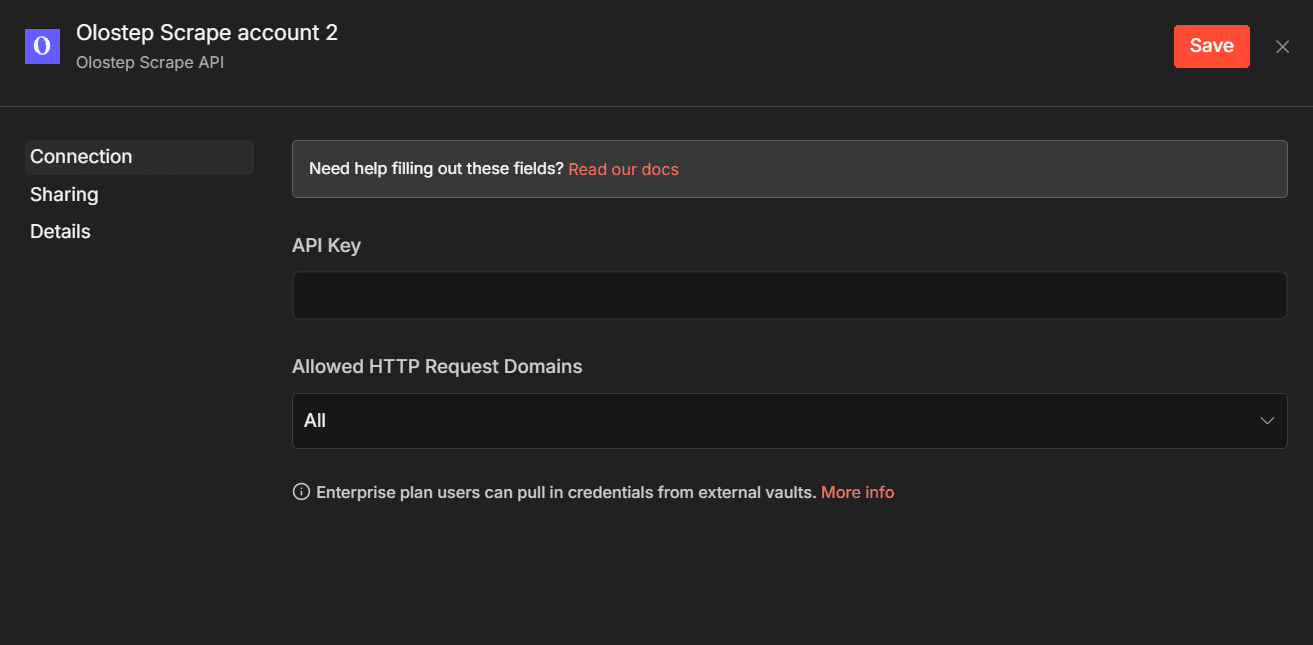
Once the credential is connected, set the query field:
{{ $json.investment_query }} |
This tells Olostep to use the custom search query generated for each ticker in the previous step.
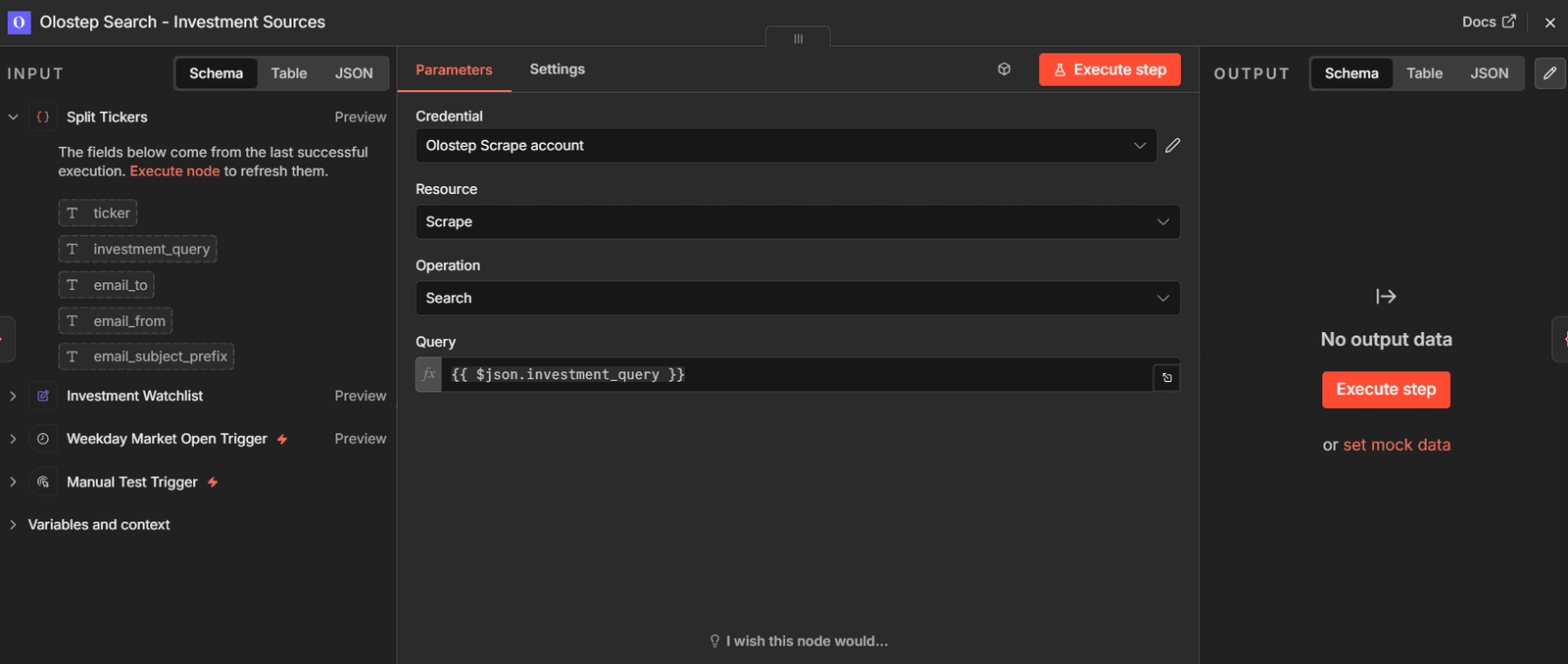
At this stage, the workflow will search the web for each company in your watchlist and return relevant public sources, such as investor relations pages, SEC filings, earnings transcripts, financial news, risk signals, and potential catalysts.
Combine Ticker Research
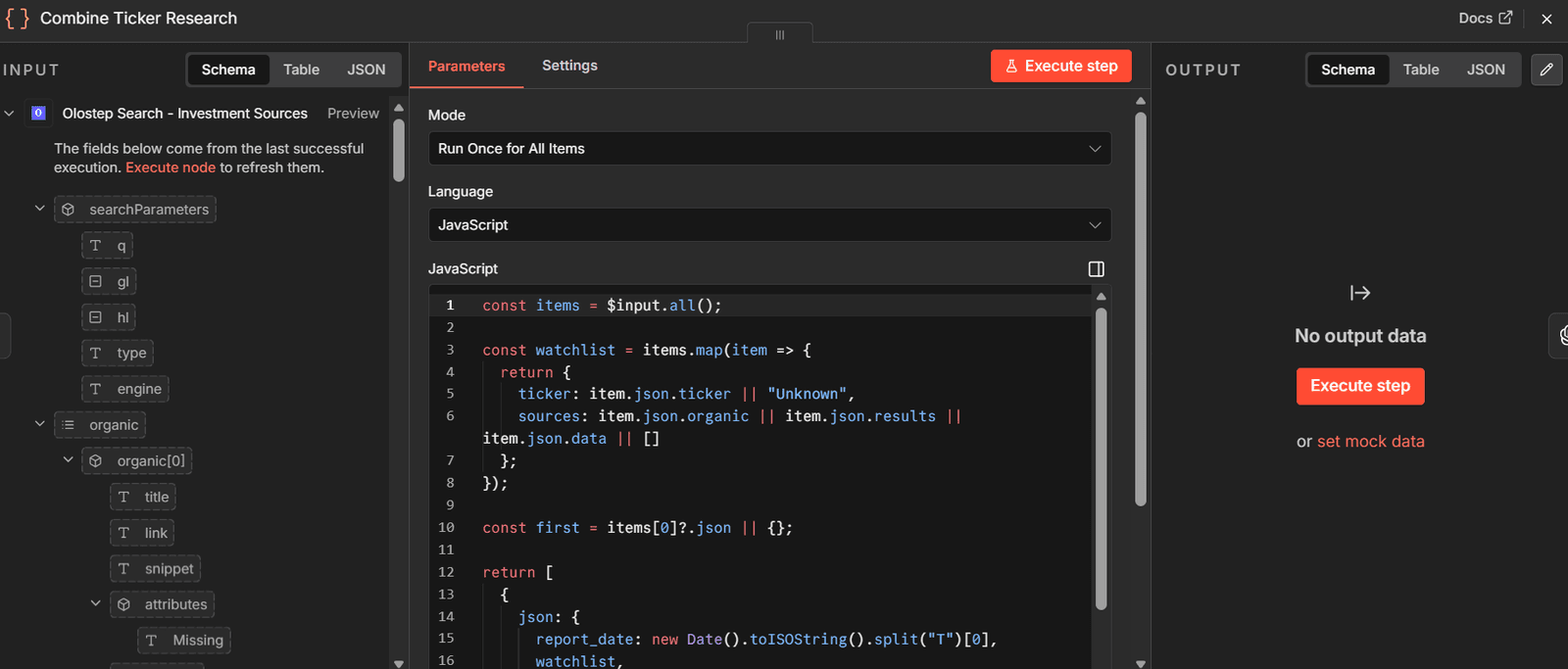
After the Olostep node, add another Code node and name it:
Combine Ticker Research |
This step is important because it combines all ticker research into one input before sending it to OpenAI. Without this step, OpenAI may create a separate report for every ticker.
Use this code:
const items = $input.all(); const watchlist = items.map(item => { return { ticker: item.json.ticker || "Unknown", sources: item.json.organic || item.json.results || item.json.data || [] }; }); const first = items[0]?.json || {}; return [ { json: { report_date: new Date().toISOString().split("T")[0], watchlist, email_to: first.email_to || "your-email@example.com", email_from: first.email_from || "your-gmail-address@gmail.com", email_subject_prefix: first.email_subject_prefix || "Daily Investment Research Report" } } ]; |
This creates one combined object containing the report date, full watchlist research, and email settings.
OpenAI - Create Full Watchlist Email Report
Next, add an OpenAI Message a model node and name it:
OpenAI - Create Full Watchlist Email Report |
Before using the node, connect your OpenAI API key. Go to the OpenAI Platform, open the API keys section, create a new secret key, and copy it. Then return to n8n, open the OpenAI node, create a new OpenAI credential, paste the key, and save it.
To access the latest OpenAI models and advanced API capabilities, you may also need to verify your OpenAI organization from the OpenAI Platform settings.
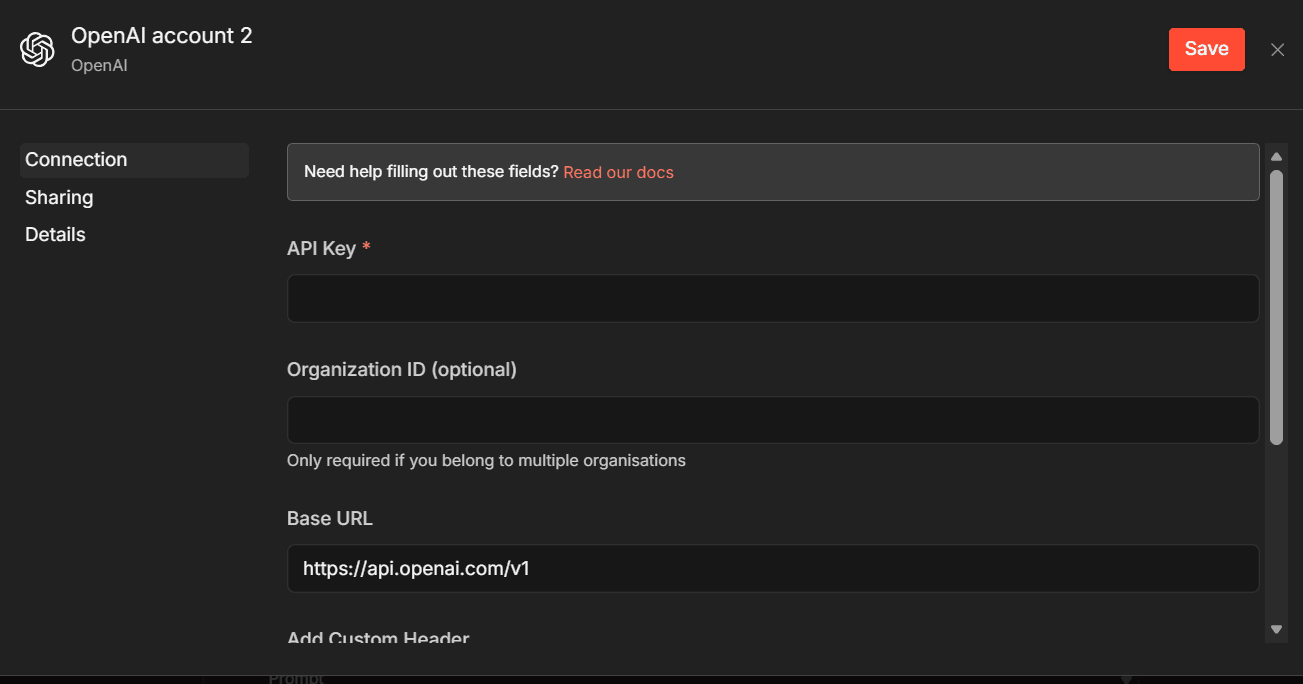
In this workflow, the OpenAI node uses:
GPT-5.4-mini |
This node turns the combined Olostep results into one structured Markdown investment research report.
Use a prompt like this:
You are an investment research assistant. |
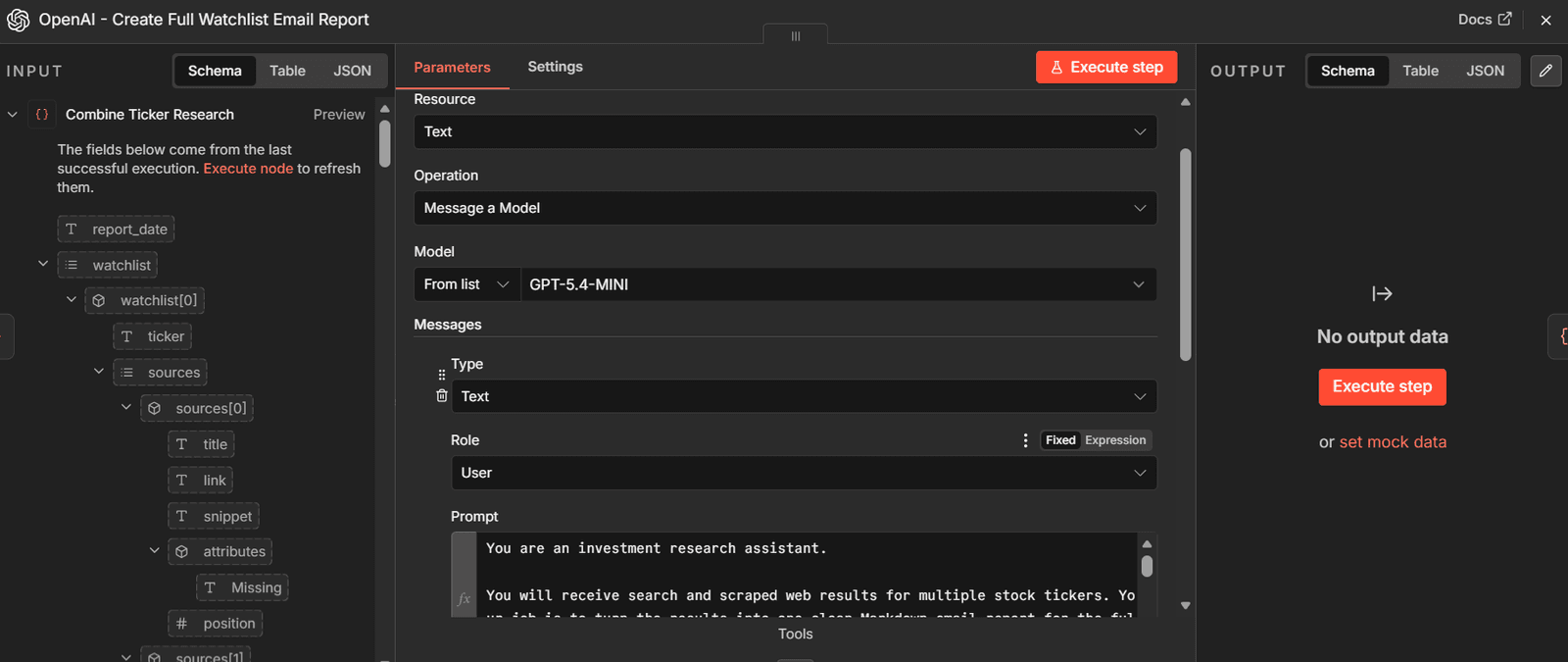
This prompt keeps the report useful while avoiding direct financial advice. It also tells OpenAI to create one full report for the entire watchlist instead of repeating the same title, summary, and disclaimer for every ticker.
Build HTML Email Body
After the OpenAI node, add a Code node and name it:
Build HTML Email Body |
This node converts the Markdown report into a styled HTML email.
Use this code:
const markdown = $json.output?.[0]?.content?.[0]?.text || $json.text || ""; const escapeHtml = (str) => String(str) .replace(/&/g, "&") .replace(/</g, "<") .replace(/>/g, ">"); let html = escapeHtml(markdown); // Markdown links and bold html = html .replace(/\*\*(.*?)\*\*/gim, "<strong>$1</strong>") .replace(/\[(.*?)\]\((.*?)\)/gim, '<a href="$2">$1</a>'); // Headings html = html .replace(/^#### (.*$)/gim, "<h4>$1</h4>") .replace(/^### (.*$)/gim, "<h3>$1</h3>") .replace(/^## (.*$)/gim, "<h2>$1</h2>") .replace(/^# (.*$)/gim, "<h1>$1</h1>") .replace(/^---$/gim, "<hr />"); // Convert simple Markdown tables before paragraph wrapping html = html.replace(/((?:^|\n)\|.+\|\n\|[-:\s|]+\|\n(?:\|.+\|\n?)+)/g, (tableBlock) => { const rows = tableBlock.trim().split("\n"); const headers = rows[0].split("|").slice(1, -1).map(h => h.trim()); const bodyRows = rows.slice(2).map(row => row.split("|").slice(1, -1).map(c => c.trim())); const thead = `<thead><tr>${headers.map(h => `<th>${h}</th>`).join("")}</tr></thead>`; const tbody = `<tbody>${bodyRows.map(cols => `<tr>${cols.map(c => `<td>${c}</td>`).join("")}</tr>`).join("")}</tbody>`; return `<table>${thead}${tbody}</table>`; }); // Convert bullet lists html = html.replace(/(?:^|\n)(- .*(?:\n- .*)*)/g, (match) => { const items = match .trim() .split("\n") .map(line => `<li>${line.replace(/^- /, "")}</li>`) .join(""); return `<ul>${items}</ul>`; }); // Convert remaining lines into paragraphs html = html .split("\n") .map(line => { const trimmed = line.trim(); if (!trimmed) return ""; if ( trimmed.startsWith("<h") || trimmed.startsWith("<ul") || trimmed.startsWith("<li") || trimmed.startsWith("</ul") || trimmed.startsWith("<hr") || trimmed.startsWith("<table") || trimmed.startsWith("<thead") || trimmed.startsWith("<tbody") || trimmed.startsWith("<tr") || trimmed.startsWith("<th") || trimmed.startsWith("<td") || trimmed.startsWith("</table") ) { return trimmed; } return `<p>${trimmed}</p>`; }) .join("\n"); const reportDate = new Date().toISOString().split("T")[0]; const subjectPrefix = $json.email_subject_prefix || "Daily Investment Research Report"; const emailHtml = `<!doctype html> <html> <head> <meta charset="utf-8"> </head> <body style="margin:0; padding:0; background:#f3f4f6; font-family:Arial, Helvetica, sans-serif; color:#111827;"> <div style="max-width:820px; margin:0 auto; padding:24px 14px;"> <div style="background:#ffffff; border:1px solid #e5e7eb; border-radius:12px; overflow:hidden;"> <div style="padding:22px 24px; border-bottom:3px solid #111827;"> <div style="font-size:11px; letter-spacing:0.12em; text-transform:uppercase; color:#6b7280; margin-bottom:8px;"> Automated Investment Research </div> <h1 style="font-size:26px; line-height:1.2; margin:0 0 6px 0; color:#0f172a;"> Daily Investment Research Report </h1> <div style="font-size:12px; color:#6b7280;">Generated on ${reportDate}</div> </div> <div style="padding:16px 24px; background:#f8fafc; border-bottom:1px solid #e5e7eb; font-size:13px; color:#374151;"> This automated email summarizes opportunity signals, risk signals, and research priorities from public sources. It is not financial advice and does not provide buy, sell, or hold recommendations. </div> <div class="report-content" style="padding:8px 24px 24px 24px; font-size:14px; line-height:1.55;"> ${html} </div> </div> </div> </body> </html>`; // Add email-safe styling after Markdown conversion const styledHtml = emailHtml .replace(/<h1>/g, '<h1 style="font-size:24px; line-height:1.2; margin:18px 0 8px; color:#0f172a;">') .replace(/<h2>/g, '<h2 style="font-size:18px; margin:24px 0 10px; padding-bottom:6px; border-bottom:1px solid #e5e7eb; color:#111827;">') .replace(/<h3>/g, '<h3 style="font-size:16px; margin:22px 0 10px; padding:10px 12px; border-left:4px solid #111827; background:#f9fafb; color:#111827;">') .replace(/<h4>/g, '<h4 style="font-size:12px; margin:16px 0 8px; color:#374151; text-transform:uppercase; letter-spacing:0.05em;">') .replace(/<p>/g, '<p style="margin:7px 0;">') .replace(/<ul>/g, '<ul style="margin:8px 0 14px 20px; padding:0;">') .replace(/<li>/g, '<li style="margin:4px 0;">') .replace(/<a /g, '<a style="color:#1d4ed8; text-decoration:none; word-break:break-word;" ') .replace(/<hr \/>/g, '<hr style="border:0; border-top:1px solid #d1d5db; margin:24px 0;" />') .replace(/<table>/g, '<table style="width:100%; border-collapse:collapse; margin:12px 0 18px; font-size:13px;">') .replace(/<th>/g, '<th style="border:1px solid #e5e7eb; padding:8px; text-align:left; background:#f9fafb;">') .replace(/<td>/g, '<td style="border:1px solid #e5e7eb; padding:8px; vertical-align:top;">'); return [ { json: { email_to: $('Split Tickers').first().json.email_to, email_from: $('Split Tickers').first().json.email_from, email_subject: `${subjectPrefix} - ${reportDate}`, email_html: styledHtml } } ]; |
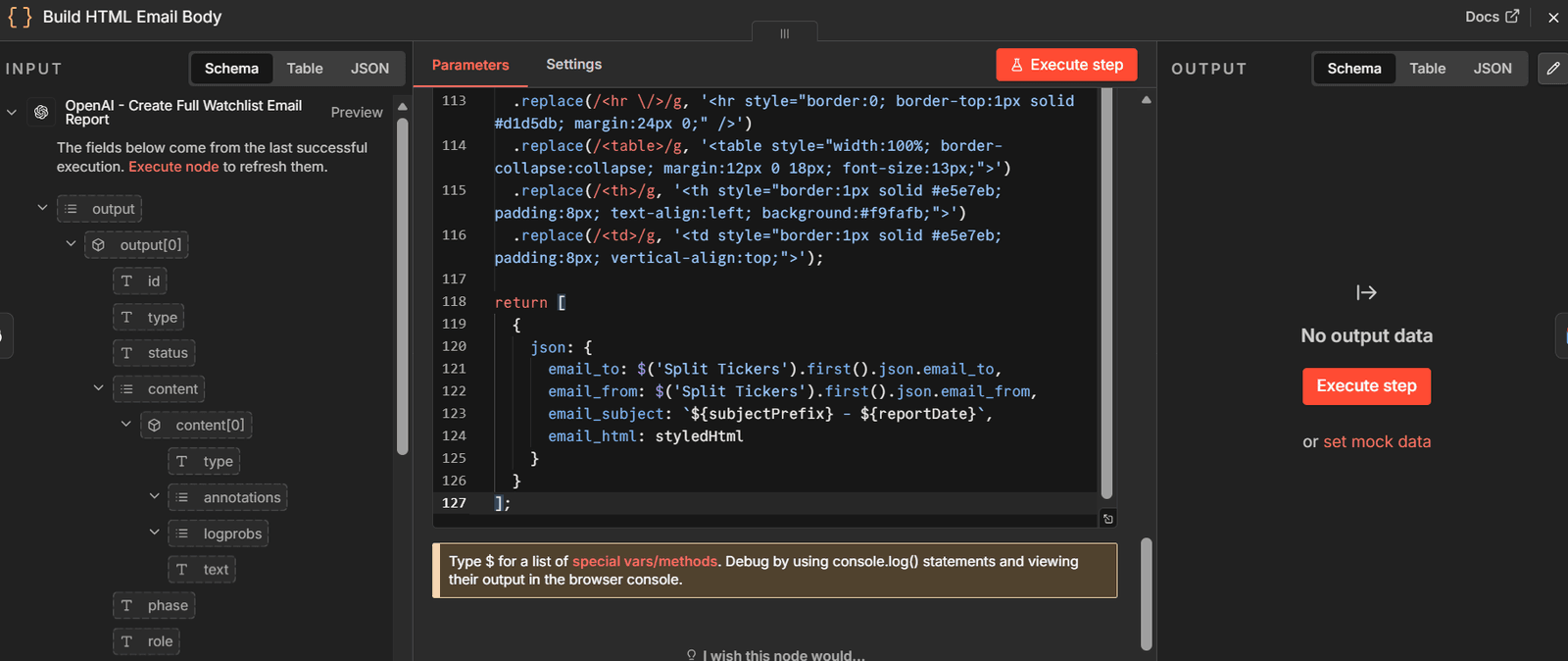
This code returns the final email fields:
email_to |
These values are used in the Gmail node.
Send HTML Email via Gmail
Finally, add a Gmail Send a message node and name it:
Send HTML Email via Gmail |
Connecting Gmail with OAuth 2.0 takes a few extra steps, so for now just add the node and configure the email fields. You can set up the Gmail credential in the next section.
Configure the Gmail node like this:
To: {{ $json.email_to }} |
In the options, set the sender name to:
Investment Research Bot |
Once Gmail credentials are connected, this node will send the final report as a styled HTML email.
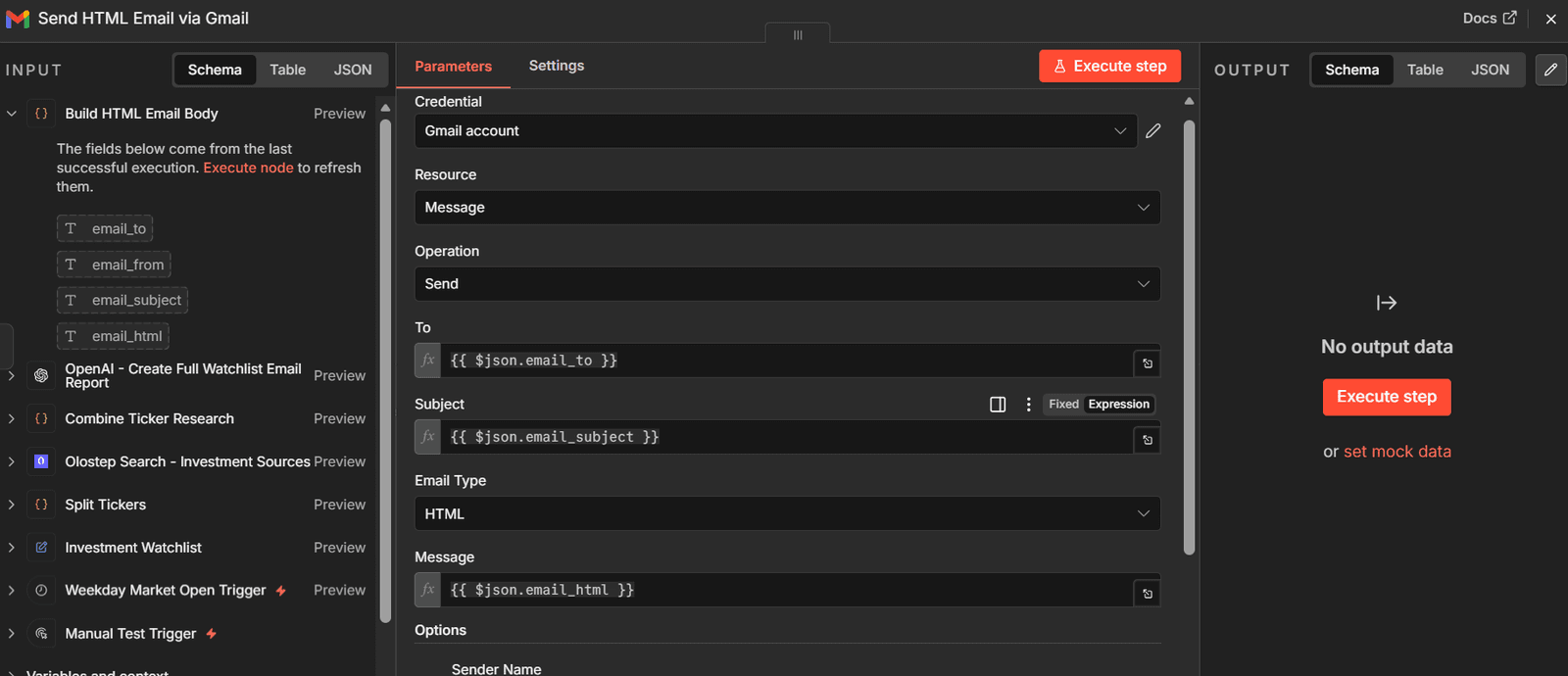
At the end, your full workflow should be connected like this:
3. Connect Gmail with Google OAuth
To send the daily investment report from Gmail, you need to connect your Gmail account to n8n using Google OAuth. This lets n8n send the HTML email securely without using your Gmail password.
Create the Google Cloud Project
First, create a dedicated Google Cloud project for this workflow.
Go to:
Google Cloud Console |
Click the project dropdown at the top of the page, then click:
New Project |
Name the project:
n8n-project |
Click Create.
Once the project is created, make sure n8n-project is selected in the top project dropdown before continuing.
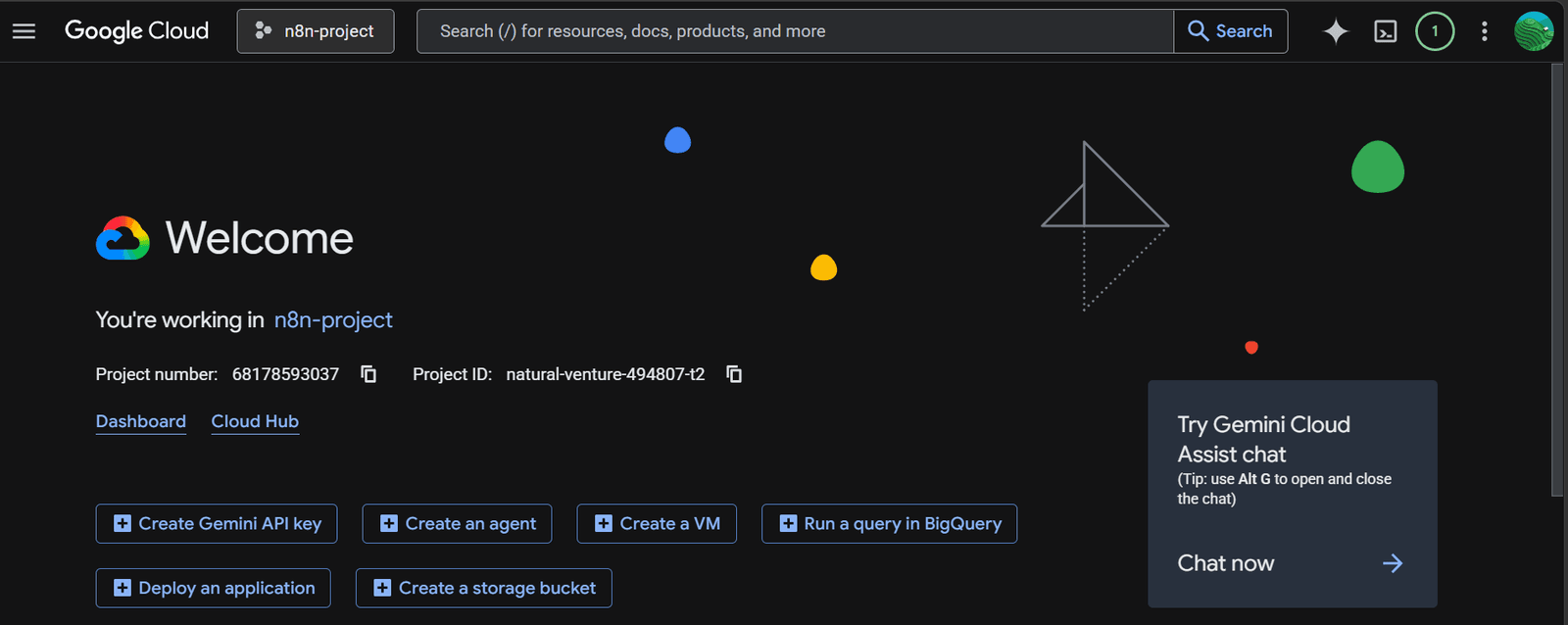
This is important because the Gmail API, OAuth app, and OAuth client must all be created inside the same Google Cloud project.
Enable the Gmail API
Now enable Gmail access for your project.
Go to:
Google Cloud Console → n8n-project → APIs & Services → Library |
Search for:
Gmail API |
Click Gmail API, then click Enable.
This gives your Google Cloud project permission to use Gmail features inside n8n.
Configure the Google Auth App
Next, set up the basic app details that Google shows during the Gmail connection process.
Go to:
Google Auth Platform → Branding |
Fill in the basic details:
App name |
Click Save.
This creates the app profile that appears when you connect Gmail to n8n.
Add Your Gmail Account as a Test User
If your Google app is in testing mode, only approved test users can connect.
Go to:
Google Auth Platform → Audience |
Under Test users, add the Gmail address you want to connect with n8n.
Click Save.
This prevents Google from blocking your Gmail login during the OAuth setup.
Create the OAuth Client
Now create the OAuth client that n8n will use to connect to Gmail.
Go to:
Google Auth Platform → Clients |
Click Create Client.
Choose the application type:
Web application |
This is the correct client type because n8n connects to Gmail through a browser-based OAuth redirect.
Under Authorized redirect URIs, add:
http://localhost:5678/rest/oauth2-credential/callback |
This URL tells Google where to send the login response after you approve Gmail access.
Click Save.
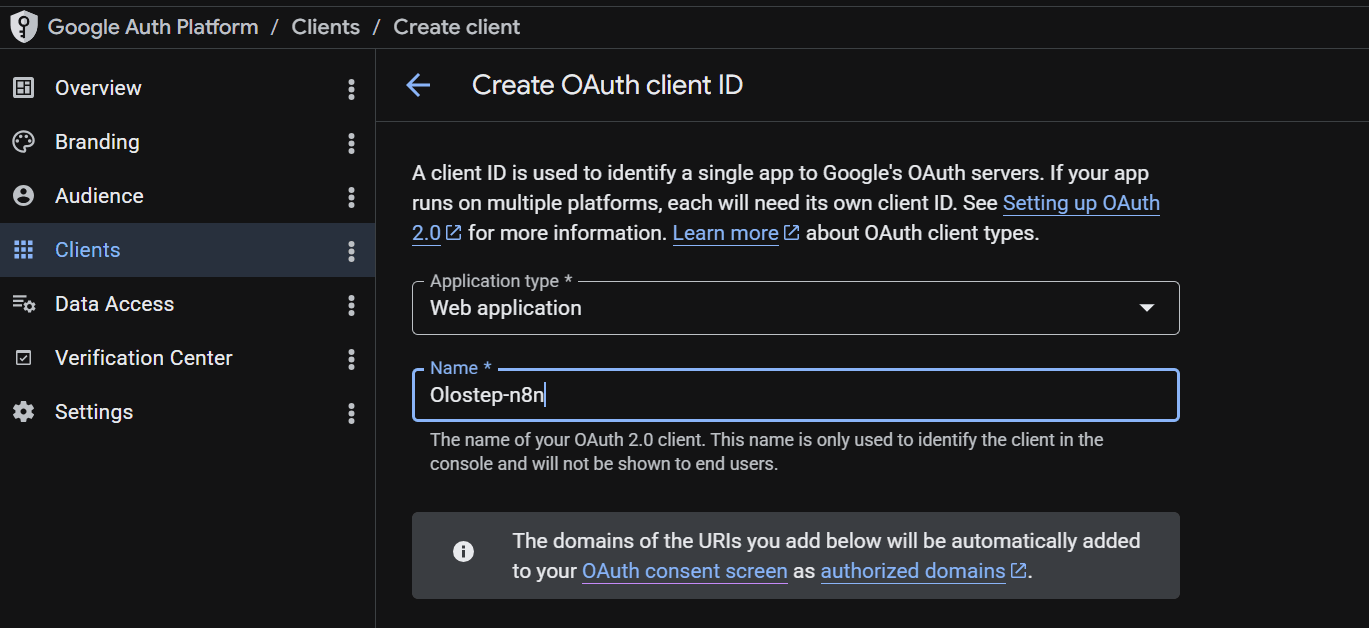
After saving, copy these two values:
Client ID |
Open n8n in your browser:
http://localhost:5678 |
Open your workflow and click the Gmail Send block.
In the Gmail block, go to the Credentials option.
Create a new Gmail OAuth2 credential, then paste the Google OAuth details you copied from Google Cloud:
Client ID |
Click:
Sign in with Google |
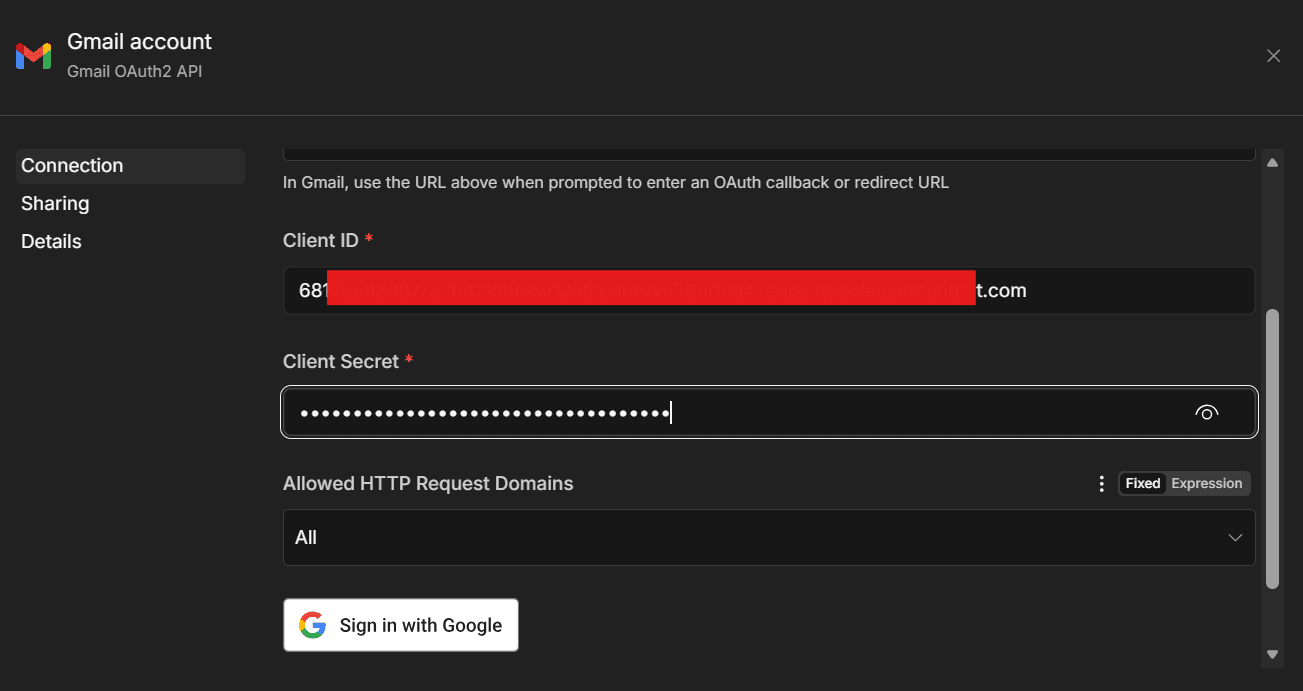
Choose the same Gmail account you added as a Test user in Google Cloud.
When Google asks for permissions, approve the Gmail permissions needed for sending the email.
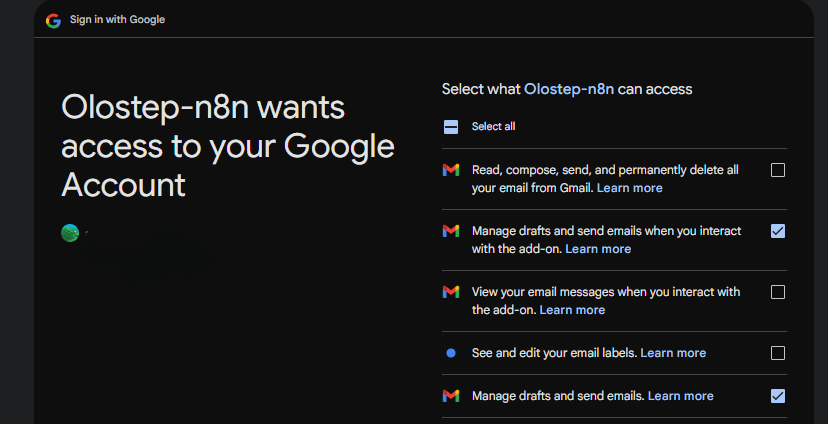
4. Validate the Workflow Output
Before publishing the workflow, test it manually to make sure everything is configured correctly.
Start by checking a few key settings:
- Open the Investment Watchlist node and confirm the tickers you want to research.
- Open the Send HTML Email via Gmail node and confirm the email address where the report should be sent.
- Make sure your Olostep, OpenAI, and Gmail credentials are connected.
- Check that the Gmail node is set to HTML email type.
Once everything is ready, click Execute Workflow in n8n.
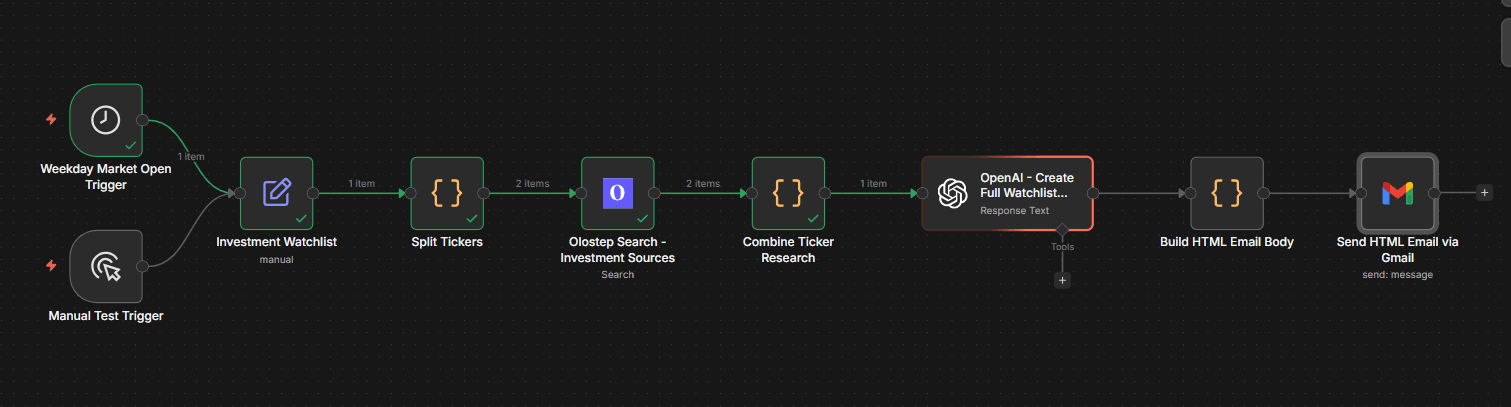
The workflow may take a few seconds to complete because it needs to search for each ticker, collect the results, generate the report with OpenAI, build the HTML email, and send it through Gmail.
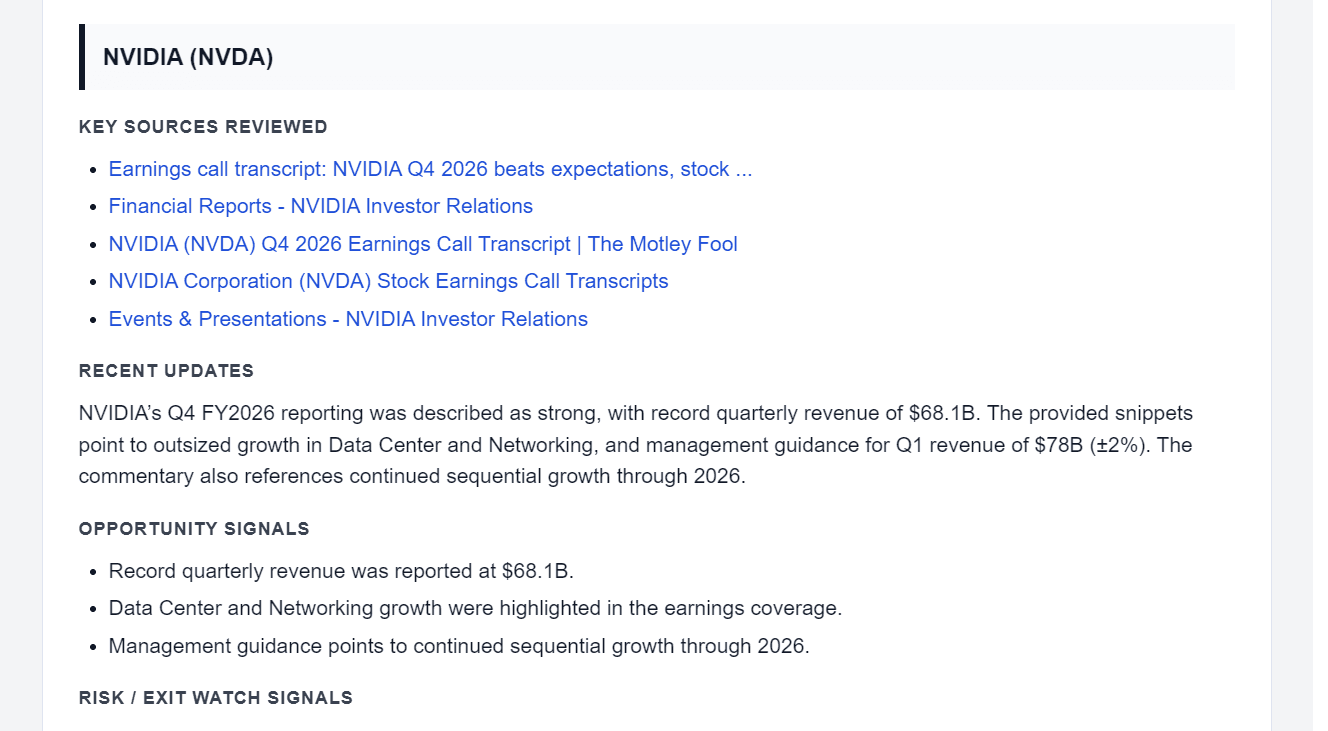
When the workflow finishes, open your inbox and check the report. The email should include a clean title, structured sections, ticker-by-ticker analysis, key sources, opportunity signals, risk signals, financial updates, and follow-up research points.
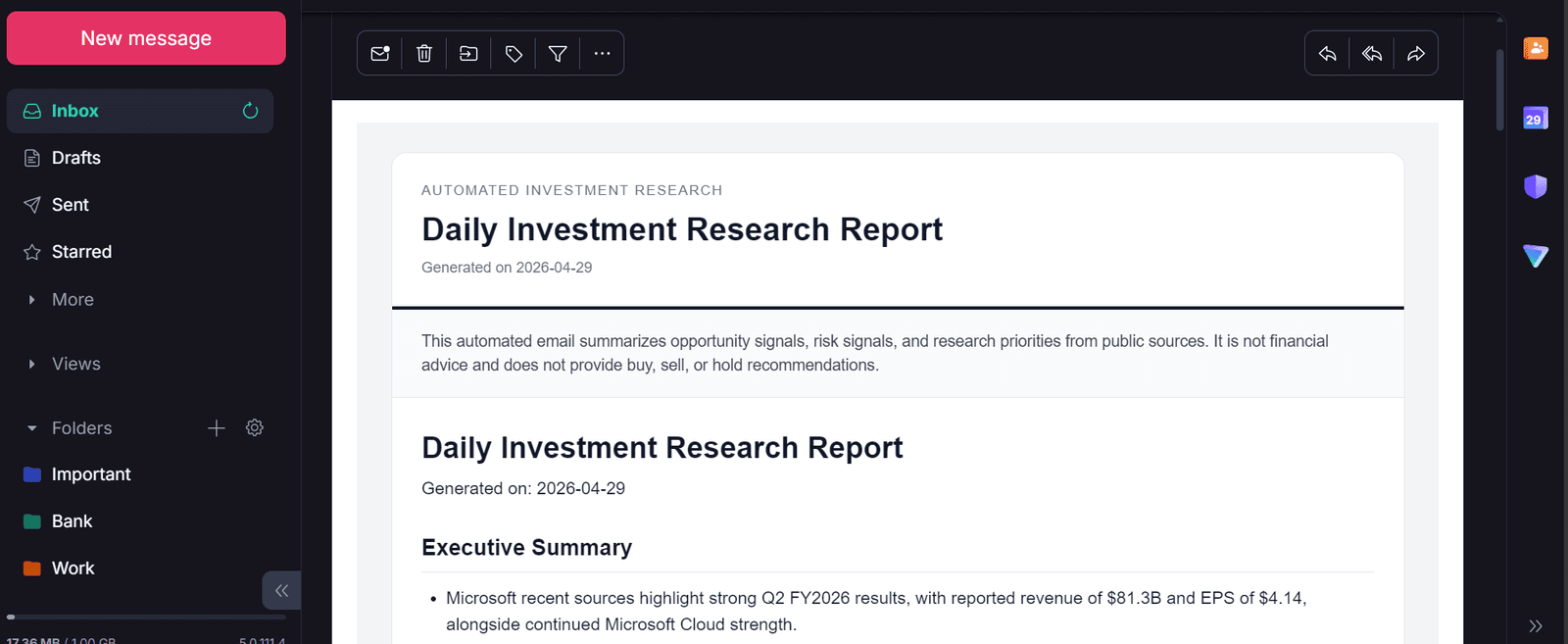
For example, if Microsoft is included in your watchlist, the report should include key sources reviewed and a detailed analysis of the company’s latest investment-related updates. The goal is to give you a helpful research summary that can support your own decision-making, without giving direct financial advice.
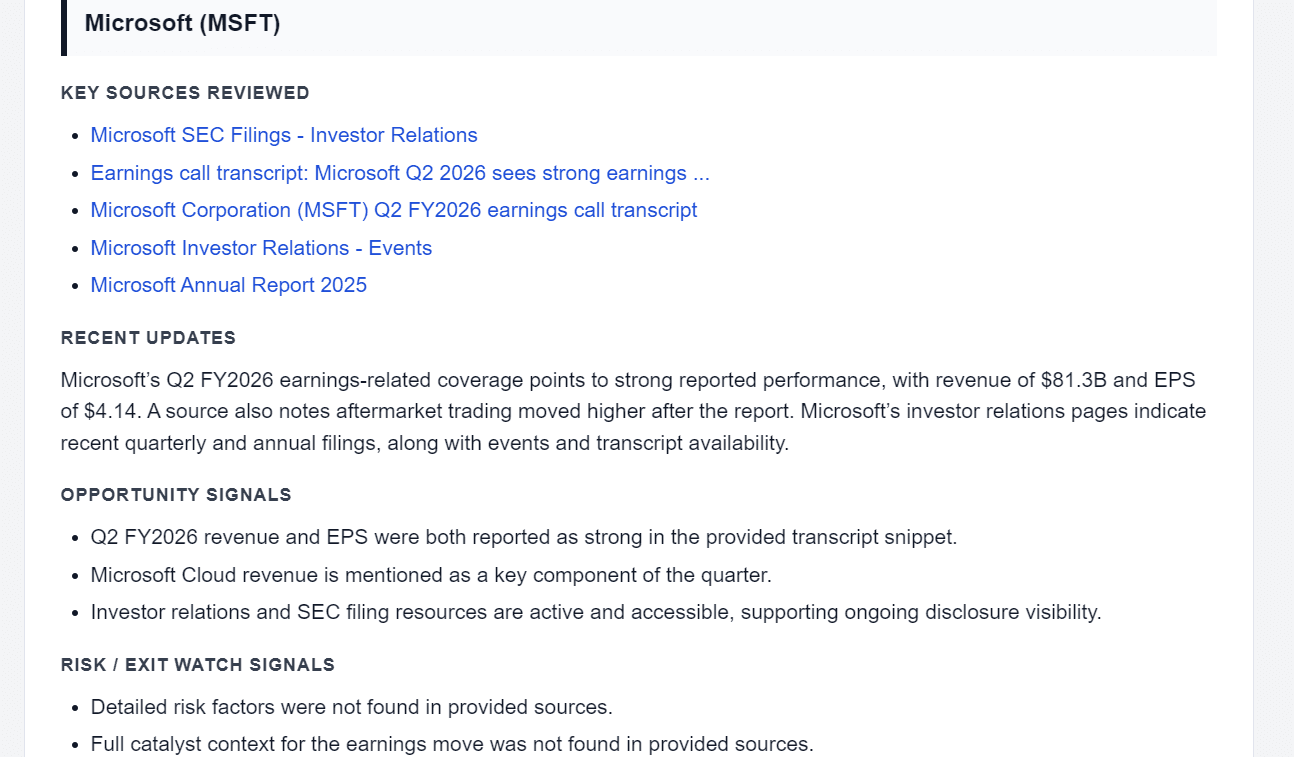
The same structure will be created for other tickers, such as NVIDIA, Apple, or Google. The final email should look professional, with clear headings, readable spacing, source links, and no broken HTML formatting.
After the manual test run is working correctly, you need to publish the workflow so it can run automatically on the weekday schedule.
5. Publish the Automated Workflow
In n8n, click Save first. Then click Publish in the top navigation of the workflow editor.
This step is important because the Schedule Trigger will only run automatically when the workflow is published. If the workflow is not published, it will only run when you manually click Execute Workflow. n8n’s Schedule Trigger documentation also notes that workflows using the Schedule Trigger should be saved and published.
6. Troubleshooting Common Setup Issues
Use this section to fix the most common issues you may run into when setting up the n8n, Olostep, OpenAI, and Gmail workflow.
Gmail OAuth Redirect Error
If Google shows a redirect error during Gmail authentication, check that the Authorized Redirect URI in Google Cloud exactly matches this:
http://localhost:5678/rest/oauth2-credential/callback |
Also make sure you are opening n8n using:
http://localhost:5678 |
Do not use 127.0.0.1 if your Google redirect URI uses localhost. Google treats these as different URLs, so they must match exactly.
Gmail Login Blocked
If Google blocks the login, your Gmail account may not be added as a test user.
Go to:
Google Auth Platform → Audience → Test users |
Then add the same Gmail address you are trying to connect inside n8n.
After saving it, go back to n8n and try connecting the Gmail credential again.
Gmail API Not Enabled
If the Gmail node fails, make sure the Gmail API is enabled in the same Google Cloud project where you created the OAuth client.
Go to:
APIs & Services → Library → Gmail API |
Then click Enable.
The OAuth client and Gmail API must be inside the same Google Cloud project. If they are created in different projects, the Gmail credential may not work correctly.
Email Sends as Raw HTML
If the email arrives showing raw HTML code instead of a formatted report, open the Gmail node and check the email type.
Set the email type to:
HTML |
Then make sure the message or body field is using:
{{ $json.email_html }} |
This tells Gmail to render the report as a formatted HTML email instead of sending it as plain text.
Olostep Returns No Results
If Olostep returns no results, check that your Olostep credential is connected correctly in n8n.
You can also test the Olostep node separately before running the full workflow. If the credential works but the results are weak, improve the search query inside the Split Tickers node.
For example, you can use:
investment_query: `${ticker} investor relations earnings call transcript SEC filing financial results risk factors` |
This gives Olostep a more focused query and can help return better investment-related sources.
Workflow Does Not Run at Market Open
If the workflow does not run automatically, check the Schedule Trigger settings.
For US market open, use:
Timezone: America/New_York |
Also make sure the workflow has been saved and published. The Schedule Trigger will not run automatically if the workflow is only saved as a draft or manually executed.
Docker Container Restarts and Credentials Disappear
If your Docker container restarts and your workflows or credentials disappear, check that your Docker Compose file includes the n8n volume.
Your file should include:
volumes:
- n8n_data:/home/node/.n8n |
and at the bottom:
volumes: |
This keeps your n8n workflows, credentials, and settings saved locally, even when the container restarts.
Frequently Asked Questions
Can I automate investment research with Olostep and n8n?
Yes. Olostep can search for public web sources, while n8n can automate the steps involved in collecting, processing, summarising, and sending the research report.
What investment sources can this workflow search for?
The workflow can search for public sources such as investor relations pages, SEC filings, earnings call transcripts, quarterly results, annual reports, financial news, company announcements, and risk-related updates.
Can I track multiple stock tickers?
Yes. The workflow uses a watchlist field where you can add multiple tickers. Each ticker is turned into a separate search query before the results are combined into one report.
Does this workflow provide investment advice?
No. The workflow is designed to collect and summarise public information. It should not be used as financial advice or as a buy, sell, or hold recommendation tool.
Can I send the report somewhere other than Gmail?
Yes. Gmail is used in this guide, but n8n can also connect to other tools. You can adapt the workflow to send the report to Slack, Notion, Google Sheets, Airtable, or another supported destination.
Why does the workflow combine ticker research before sending it to OpenAI?
Combining the research first allows OpenAI to create one complete watchlist report. Without this step, the workflow may generate separate reports for each ticker and repeat the same sections multiple times.
What should I do if Olostep returns weak results?
Refine the search query with more specific investment research terms. For example, include investor relations, SEC filing, earnings call transcript, financial results, risk factors, revenue guidance, or company announcement.
Can I run this workflow weekly instead of daily?
Yes. You can change the Schedule Trigger in n8n to run daily, weekly, monthly, or on a custom schedule.
Summary
You have now built a daily investment research agent inside n8n. The workflow uses Olostep to collect public investment-related sources, OpenAI to turn that research into a structured report, and Gmail to send the final HTML email directly to your inbox.
The key step in this workflow is combining all ticker research before sending it to OpenAI. This prevents the report from repeating the same title, summary, and disclaimer for every ticker. Instead, you get one clean daily report that covers the full watchlist in a single email.
You can also expand this workflow over time. For example, you can add more tickers, improve the Olostep search query, include more source filters, add SEC filing summaries, check analyst rating updates, or create separate sections for short-term risks and long-term growth signals.
Import the Ready-Made Workflow Template
The full project is also available on GitHub: kingabzpro/olostep-n8n-investment-agent. You can clone the repository and run the setup commands if you want to build the project from the included files.
If you already have n8n running and only want to import the ready-made workflow template, create a new workflow in n8n. Then click the three-dot menu in the top-right corner and select Import from the URL.
Paste this workflow URL:
After importing the workflow, update the credentials, ticker list and recipient email address before running it. This ensures the workflow uses your own Olostep, OpenAI and Gmail settings instead of the placeholder configuration.