


Voice assistants have come a long way, but they still struggle with one simple thing. Ask them anything recent, and the experience quickly breaks down because they rely on static training data.
That gap becomes obvious the moment you need something up to date. Whether it’s news, updates, or anything changing in real-time, the answers just don’t keep up.
What you actually want is a voice agent that can look things up while you’re talking and give you up-to-date answers.
In this tutorial, you’ll build a real-time voice agent that listens and responds using Google Gemini’s Live API. Whenever it needs fresh information, it calls Olostep to search the web and return answers with sources, all running inside a LiveKit room in a single Python file.
Building a Basic Real-Time Voice Agent
Traditional voice assistants are mostly command-based. You ask something, wait for it to be processed, and get a response. The flow usually feels rigid and linear.
A voice agent works more like an ongoing conversation. It listens while you speak, responds quickly, and keeps context across the interaction.
To build that experience, you need two pieces working together: a model that can handle live conversation and infrastructure that can manage streaming audio communication.
Google Gemini Live API handles the conversation layer. It can listen to speech, understand context, generate responses, and speak back during the interaction. LiveKit Agents handle the audio transport and session management layer. It manages room connections, streaming, and the underlying WebRTC infrastructure so you can focus on building the agent itself.
Together, they make it possible to build a fast and responsive voice agent with very little code.
Here is the minimal version of the agent:
import logging

from livekit import agents
from livekit.agents import Agent, AgentSession, AgentServer
from livekit.plugins import google

logger = logging.getLogger(__name__)

MODEL = "gemini-3.1-flash-live-preview"
VOICE = "Zephyr"

INSTRUCTIONS = """
You are a helpful realtime voice assistant.

- Be friendly and conversational.
- Keep responses short and natural.
- Speak like you are talking to a real person.
"""

class VoiceAgent(Agent):
    def __init__(self) -> None:
        super().__init__(instructions=INSTRUCTIONS)

server = AgentServer()

@server.rtc_session(agent_name="basic-voice-agent")
async def entrypoint(ctx: agents.JobContext):
    session = AgentSession(
        llm=google.realtime.RealtimeModel(
            model=MODEL,
            voice=VOICE,
        ),
    )

    await session.start(
        room=ctx.room,
        agent=VoiceAgent(),
    )

if __name__ == "__main__":
    agents.cli.run_app(server)
With this setup, you have a real-time voice assistant that you can speak to naturally through a LiveKit room.
Running the Basic Agent
First, start the agent worker:
python main.py devThis only starts and registers the agent locally. The agent will not automatically join a room yet.
To bring the agent into a LiveKit room, you need to dispatch it manually from a new terminal:
lk dispatch create \\
--agent-name basic-voice-agent \\
--room my-room
This launches the basic-voice-agent inside the room named my-room.
Now open agents-playground.livekit.io in your browser, connect using your LiveKit credentials, set the room name to my-room, and allow microphone access.
Once connected, start talking naturally to the agent.
You can try questions like:
- “What is WebRTC?”
- “Explain LiveKit.”
- “What is a vector database?”
Gemini responds in real-time, making the interaction feel much more fluid than a traditional voice assistant.
Where Static Knowledge Breaks Down
Even though the voice interaction already feels natural, the agent still has the same limitation as any standalone language model: it only knows what exists in its training data.
That becomes obvious the moment you ask something time-sensitive.
Questions like:
- “What is the latest AI news today?”
- “Who won the match last night?”
- “What is the current Bitcoin price?”
- “What changed in the latest React release?”
All require fresh information from the web.
Without access to live data, the agent may give outdated information or fail to answer reliably. The conversation still works, but the assistant cannot keep up with real-time changes.
That is the gap we solve next by giving the agent access to live web search.
Adding Live Web Search with Olostep
A typical search API usually returns a list of links. You still need to fetch pages, extract content, filter noise, and figure out what actually answers the question. That workflow is too slow and heavy for a real-time voice interaction.
Olostep Answers simplifies the process into a single API call. The API design is intentionally object-oriented and feels similar to working with APIs like Stripe, making it straightforward to integrate into agent workflows and backend applications.
You send a question, and it crawls the web, synthesizes a direct answer, and returns source URLs alongside it. That makes it practical to use directly inside a live conversation.
To connect Olostep to the agent, we define a web_search tool that Gemini can call whenever it needs fresh information.
import os

from livekit.agents import function_tool
from olostep import Olostep

@function_tool
async def web_search(query: str) -> str:
    """Search the web for current information."""

    client = Olostep(
        api_key=os.getenv("OLOSTEP_API_KEY")
    )

    answer = client.answers.create(task=query)

    text = answer.answer or "No answer available."
    sources = ", ".join(answer.sources)

    return f"{text}\\n\\nSources: {sources}"
The @function_tool decorator registers the function as a tool inside LiveKit Agents. Once attached to the session, Gemini can automatically invoke it during a conversation whenever a question requires live information.
Upgrading the Agent with Tool Calling
The web_search function becomes useful once it is attached to the agent session as a tool.
session = AgentSession(
    llm=google.realtime.RealtimeModel(
        model=MODEL,
        voice=VOICE,
    ),
    tools=[web_search],
)
That single addition changes how the agent behaves during conversation.
Gemini can now decide when fresh information is needed and automatically call the web_search tool in the middle of a live interaction.
The important part is that the conversation flow stays natural for the user. They continue speaking normally, the agent fetches live information when required, and the response comes back within the same voice conversation.
How the Full Voice Agent Works
The agent now supports both real-time voice conversation and live web retrieval.
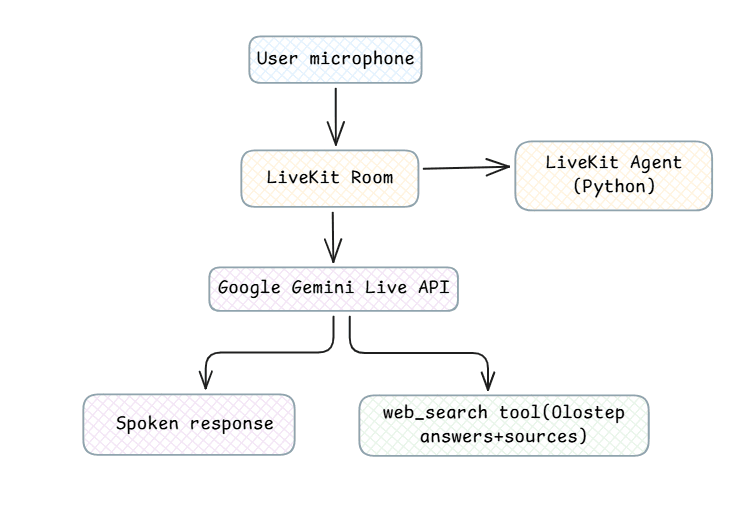
Audio flows through LiveKit to Gemini, allowing the model to listen and respond in real-time. When a question needs current information, Gemini automatically calls the web_search tool. Olostep returns a live answer with sources, and Gemini continues the conversation using that context.
Here’s what the full flow looks like end-to-end:
Project Structure
Now that the overall conversation flow is in place, let’s set up the project and assemble the full agent.
Here’s how the project is laid out:
livekit_web_search_agent/
├── main.py           # Core agent logic, tool definition, and entry point
├── pyproject.toml    # Dependencies and project configuration
├── .env.example      # Sample environment variables (API keys, config)
└── README.md         # Setup steps and usage instructions
Most of the project lives inside main.py. It combines the Gemini integration, LiveKit session, and web_search tool in a single file, keeping the overall architecture easy to follow.
pyproject.toml manages dependencies, while .env.example provides the required environment variables for LiveKit, Gemini, and Olostep.
Install Dependencies
You will need Python 3.11 or 3.12. This project does not yet support Python 3.13 or later.
Clone the repository and enter the project folder:
git clone <https://github.com/Studio1HQ/livekit-web-search-agent.git>
cd livekit-web-search-agent
Create and activate a virtual environment:
python -m venv .venv
source .venv/bin/activate   # Windows: .venv\\Scripts\\activate
Install the dependencies:
pip install -e .The project depends on four packages:
livekit-agents[google]— the LiveKit Agents framework with Google plugin includedgoogle-genai— Google's Gemini SDK for the Live APIolostep— the Olostep SDK for the web search toolpython-dotenv— loads your.envfile at startup
Configure the Project
You’ll need API keys for three services before running the agent.
LiveKit Cloud
Create a project at cloud.livekit.io. In the project Settings page, copy:
LIVEKIT_URLLIVEKIT_API_KEYLIVEKIT_API_SECRET
LIVEKIT_URL will look similar to:
wss://your-project.livekit.cloudGoogle AI Studio
Create an API key at aistudio.google.com. This becomes your GOOGLE_API_KEY and powers Gemini’s live voice capabilities.
Olostep
Create an API key at olostep.com. This becomes your OLOSTEP_API_KEY, used by the web_search tool for live web retrieval.
Once you have all the keys, copy the example environment file:
cp .env.example .envThen update it with your credentials:
LIVEKIT_URL=wss://your-project.livekit.cloud
LIVEKIT_API_KEY=your-livekit-api-key
LIVEKIT_API_SECRET=your-livekit-api-secret
GOOGLE_API_KEY=your-google-api-key
OLOSTEP_API_KEY=your-olostep-api-key
With this in place, the agent can connect to LiveKit, access Gemini Live API, and retrieve live information through Olostep.
Code Walkthrough
The final main.py combines the Gemini voice agent, the Olostep-powered web_search tool, and the LiveKit session configuration together.
Model Configuration
The first part defines the Gemini Live model and the voice used during the conversation.
REALTIME_MODEL = "gemini-3.1-flash-live-preview"
VOICE = "Zephyr"
The Gemini live model handles speech recognition, reasoning, tool calling, and voice synthesis inside the same real-time session. VOICE controls how the agent sounds when responding back to the user.
Agent Instructions
The INSTRUCTIONS prompt defines how the agent behaves during conversation.
INSTRUCTIONS="""You are a helpful voice assistant powered by Gemini.

Style:
- Be concise, friendly, and conversational.
- Prefer short, punchy sentences.
- When a question needs fresh information, call the web_search tool.
- Mention sources when using search results.
"""
For voice agents, prompting style matters a lot. Short responses and conversational phrasing make the interaction sound more natural when spoken aloud.
The instructions also tell Gemini when it should use the web_search tool and how to handle source attribution.
Adding the web_search Tool
The web_search function connects the agent to Olostep Answers.
@function_tool
async def web_search(query: str) -> str:
The @function_tool decorator registers the function as a tool inside LiveKit Agents. That allows Gemini to invoke it automatically during conversation whenever current information is needed.
Inside the function, Olostep receives the search query, crawls the web, synthesizes a direct answer, and returns source URLs alongside it. The result is then passed back into the conversation context before Gemini generates the spoken response.
Creating the Voice Agent
The VoiceAgent class defines the actual agent used inside the session.
class VoiceAgent(Agent):
    def __init__(self) -> None:
        super().__init__(instructions=INSTRUCTIONS)
At this stage, the class's main responsibility is to attach the conversation instructions to the agent.
Connecting Everything with AgentSession
The final step is to create the real-time session and connect Gemini, Olostep, and LiveKit.
session = AgentSession(
    llm=google.realtime.RealtimeModel(
        model=REALTIME_MODEL,
        voice=VOICE,
    ),
    tools=[web_search],
)
AgentSession acts as the runtime layer for the voice agent. It initializes the Gemini real-time model, attaches the Olostep-powered web_search tool, and manages the live interaction flow.
Once session.start() runs, the agent joins the LiveKit room and starts listening for voice input in real-time.
Running the Full Agent
Start the agent with:
python main.py startYou should see output like this:
INFO  livekit.agents  starting worker
INFO  livekit.agents  plugin registered  {"plugin": "livekit.plugins.google"}
INFO  livekit.agents  registered worker  {"agent_name": "gemini-voice-agent", "region": "India South"}
The last line confirms the agent is connected to your LiveKit server and waiting for participants. For development with auto-reload on file changes:
python main.py devTesting with LiveKit Playground
With the agent running, open agents-playground.livekit.io in your browser.
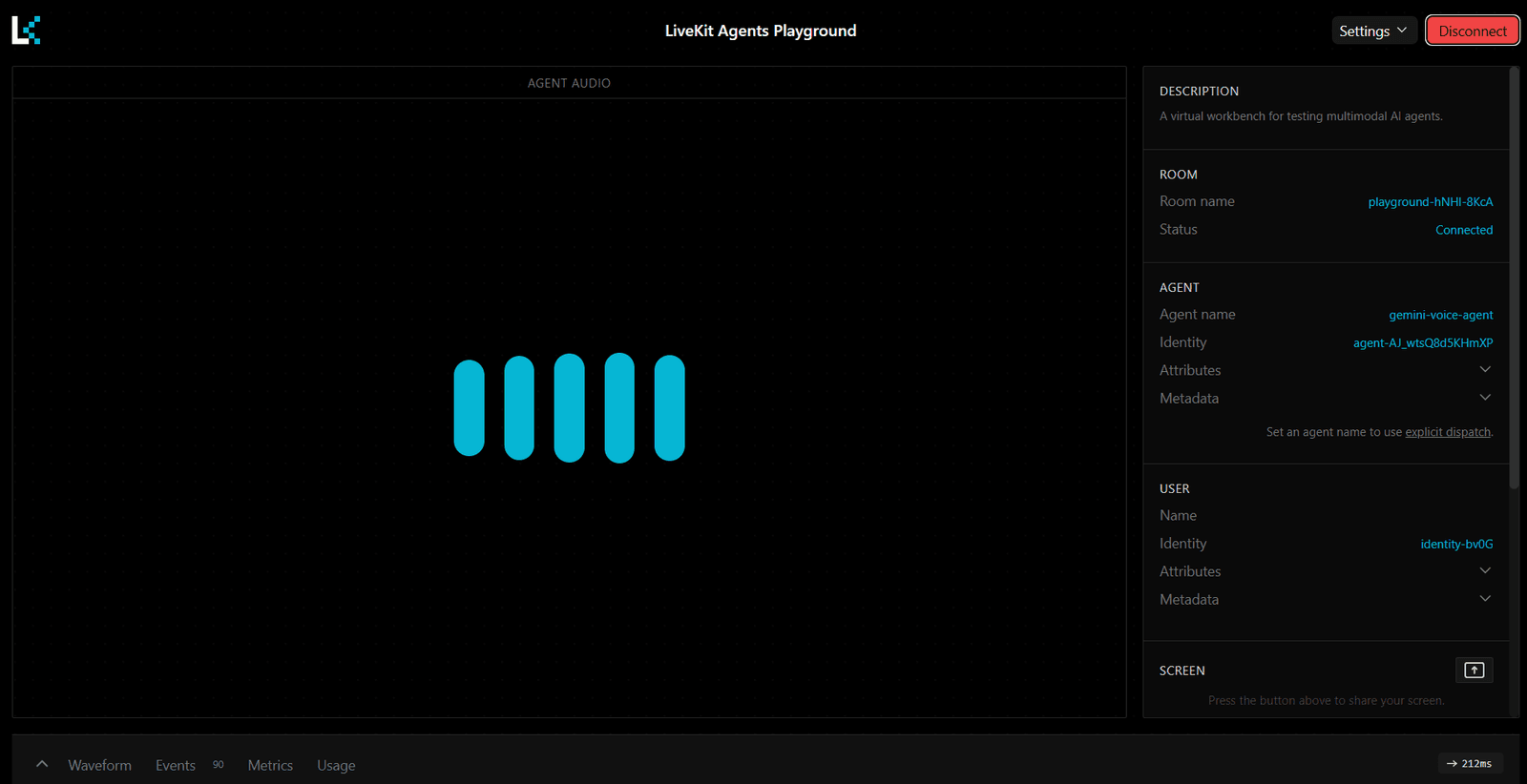
Click Connect in the top right and enter your credentials:
URL:        wss://your-project.livekit.cloud
API Key:    your-livekit-api-key
API Secret: your-livekit-api-secret
Once connected, allow microphone access and start talking. The agent will greet you and wait for your questions.
Once connected, dispatch the agent to the room. This project uses explicit agent dispatch, the agent only joins a room when called. Run this in a new terminal:
lk dispatch create \\
  --agent-name gemini-voice-agent \\
  --room my-room
Then, in the playground, set the room name to my-room and connect. Allow microphone access and start talking.
Try these to see both modes in action:
| Question | What happens |
|---|---|
| What is LiveKit? | Answered from Gemini's knowledge |
| What is the latest AI news today? | Triggers web search via Olostep |
| Who won the match last night? | Triggers web search via Olostep |
| What is a WebRTC agent? | Answered from Gemini's knowledge |
When Olostep is called, you will hear the agent pause briefly, fetch the answer, and repeat it, naming the source aloud.
Here is the demo:
https://youtu.be/PqnvrfOrkVU
Real-World Use Cases for Voice Agents with Live Web Search
Adding live web retrieval changes what a voice agent can actually do in production. The agent is no longer limited to static knowledge and can respond with current information during the conversation.
- Customer Support Voice Agents: Fetch live product details, pricing, or policy updates while talking to customers.
- Meeting and Workplace Assistants: Answer questions about recent announcements, documents, or internal updates in real-time.
- Travel and Booking Assistants: Check flights, weather, traffic, or hotel availability during live conversations.
- Research and Knowledge Copilots: Retrieve current information, summaries, and cited sources while discussing a topic.
- Operations and Monitoring Assistants: Surface live metrics, incidents, or service status updates through voice interaction.
- Internal Enterprise AI Assistants: Connect employees with real-time company information without leaving the conversation flow.
Conclusion
You now have a voice agent that can hold conversations, retrieve live information, and respond with source-backed answers during interaction. LiveKit Agents handles the connection and session flow, Gemini handles the conversation and tool calling, and Olostep brings in fresh information with sources when needed.
The pattern is easy to extend. Add a new @function_tool, include it in the tools list, and the agent picks up a new capability. It could be a calendar lookup, a database query, or a weather API. The voice layer stays the same.
Olostep also supports one-time credit top-ups alongside subscription plans, which is useful for experimentation, prototypes, and smaller deployments where usage may vary month to month.
You can explore the Olostep documentation and API reference to build additional tools and workflows on top of the same architecture.